Home / MAD1 / Week 8 / Real questions
MAD1 week 8 - real exam questions
60 questions pulled from past papers whose wording matches this week's topics, newest first, duplicates removed. Pick your answers, then press Check answers. Figures and answer keys are the originals.
Elapsed 00:00
Which of the following statements is correct? Statement 1: In Server-Side Rendering (SSR), the client's browser receives a nearly empty HTML skeleton and relies heavily on client-side JavaScript execution to fetch data and construct the Document Object Model (DOM). Statement 2: Client-Side Rendering (CSR) reduces the immediate processing load on the web server by offloading UI layout rendering tasks to the user's browser engine.
- Both are incorrect
- Both are correct
- Only Statement 1 is correct
- Only Statement 2 is correct
Consider the following flask app.
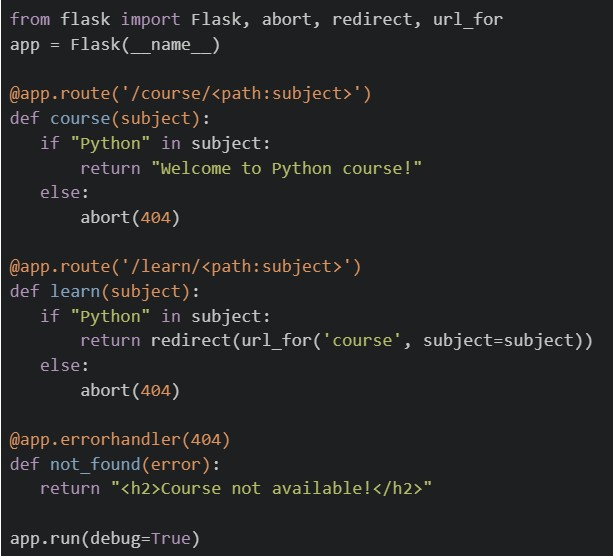 If the application is running locally on http://127.0.0.1:5000, select the correct options.
If the application is running locally on http://127.0.0.1:5000, select the correct options.Text of the picture (copyable)
```python
from flask import Flask, abort, redirect, url_for
app = Flask(__name__)

@app.route('/course/<path:subject>')
def course(subject):
    if "Python" in subject:
        return "Welcome to Python course!"
    else:
        abort(404)

@app.route('/learn/<path:subject>')
def learn(subject):
    if "Python" in subject:
        return redirect(url_for('course', subject=subject))
    else:
        abort(404)

@app.errorhandler(404)
def not_found(error):
    return "<h2>Course not available!</h2>"

app.run(debug=True)
```
text
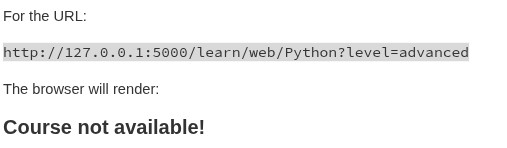
For the URL:

```
http://127.0.0.1:5000/learn/web/Python?level=advanced
```

The browser will render:

**Course not available!**
text
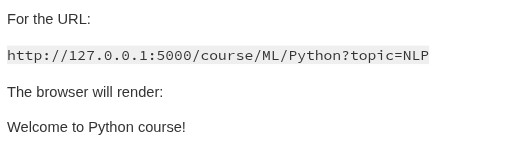
For the URL:

```
http://127.0.0.1:5000/course/ML/Python?topic=NLP
```

The browser will render:

Welcome to Python course!
text
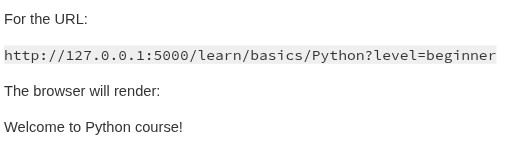
For the URL:

```
http://127.0.0.1:5000/learn/basics/Python?level=beginner
```

The browser will render:

Welcome to Python course!
text
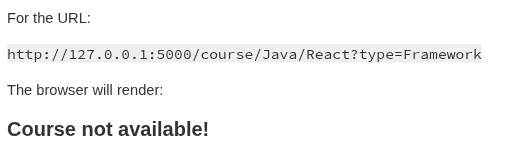
For the URL:

```
http://127.0.0.1:5000/course/Java/React?type=Framework
```

The browser will render:

**Course not available!**
Which of the following statements is/are true about Document Object Model (DOM)?
- It is the programming interface for web documents.
- It is the abstract model of the document.
- Its structure is rigid and cannot be changed once created.
- It can only be manipulated with the help of JavaScript.
Consider the following HTML and CSS code.
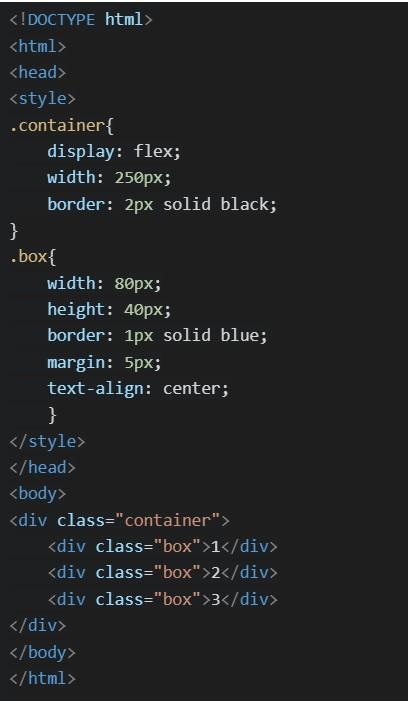 Which of the following will be the correct rendered output ?
Which of the following will be the correct rendered output ?Text of the picture (copyable)
```html
<!DOCTYPE html>
<html>
<head>
<style>
.container{
    display: flex;
    width: 250px;
    border: 2px solid black;
}
.box{
    width: 80px;
    height: 40px;
    border: 1px solid blue;
    margin: 5px;
    text-align: center;
}
</style>
</head>
<body>
<div class="container">
    <div class="box">1</div>
    <div class="box">2</div>
    <div class="box">3</div>
</div>
</body>
</html>
```
text
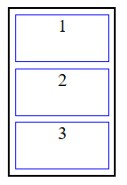
This is a diagram showing three rectangular boxes stacked vertically within a larger outer rectangle. Each inner box is outlined in blue and contains a single number.
- The top box is labeled "1".
- The middle box is labeled "2".
- The bottom box is labeled "3".
text
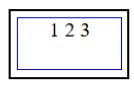
This is a diagram of a rectangle with a nested rectangle.
The outer rectangle is black.
The inner rectangle is blue.
Inside the inner rectangle, the text "1 2 3" is displayed.
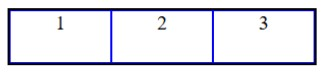
text
This is a diagram of three rectangular boxes arranged horizontally, each containing a number.
- The first box on the left contains the number "1".
- The second box in the middle contains the number "2".
- The third box on the right contains the number "3".
All boxes are outlined with a dark blue border, and the vertical lines separating the boxes are also dark blue.
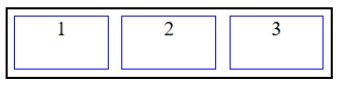
text
The image displays a diagram with a black rectangular outer border. Inside this border, there are three smaller, identical rectangular boxes arranged horizontally. Each of these inner boxes has a blue border. The boxes are labeled with numbers: "1" in the leftmost box, "2" in the middle box, and "3" in the rightmost box. There is a small gap between each of the inner boxes.
Which of the following statements are true about DOM?
- Changing the DOM value changes the HTML source file.
- JS can interact with DOM elements.
- DOM is created before the JS is executed.
- DOM is created after the JS is executed.
- HTML and DOM are identical.
Consider the following HTML/JavaScript code.
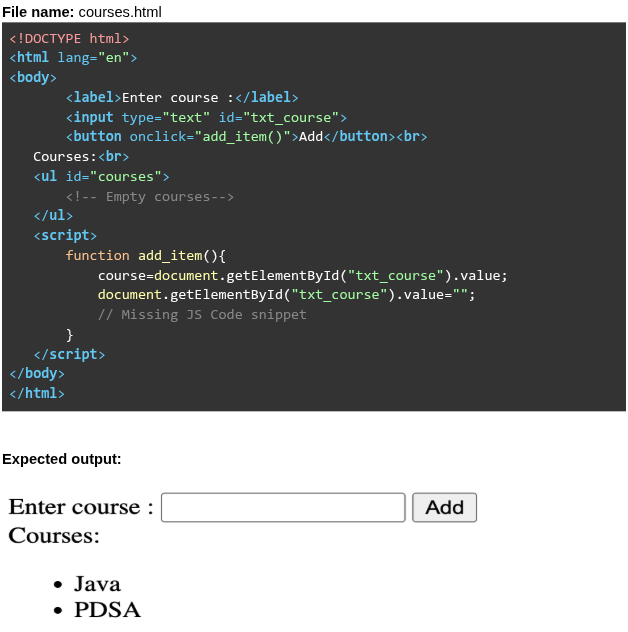 The above code allows courses to be added dynamically to the
  element when the user clicks the “Add” Button. What is the most suitable
  given below?
The above code allows courses to be added dynamically to the element when the user clicks the “Add” Button. What is the most suitable given below?Text of the picture (copyable)
File name: courses.html

```html
<!DOCTYPE html>
<html lang="en">
<body>
    <label>Enter course :</label>
    <input type="text" id="txt_course">
    <button onclick="add_item()">Add</button><br>
    Courses:<br>
    <ul id="courses">
        <!-- Empty courses-->
    </ul>
    <script>
        function add_item(){
            course=document.getElementById("txt_course").value;
            document.getElementById("txt_course").value="";
            // Missing JS Code snippet
        }
    </script>
</body>
</html>
```

Expected output:

Enter course : [text input field] [Add button]
Courses:
* Java
* PDSA
```html
<ul>
```
```javascript
//Missing JS Code snippet
```
text
```javascript
courses=document.getElementById("txt_course");
courses.innerHTML=courses.innerHTML+"<li>"+course+"</li>";
```
text
```javascript
courses=document.getElementById("courses");
courses.innerHTML=courses.innerHTML+"<li>"+course+"</li>";
```
text
```javascript
courses.innerHTML=courses.innerHTML + "<li>"+course+"</li>";
```

text
```javascript
courses.innerHTML = "<li>"+course+"</li>";
```
Which of the following enables asynchronous communication between client and server without loading the entire web page?
- CGI
- FTP
- SMTP
- AJAX
Consider the following HTML code.
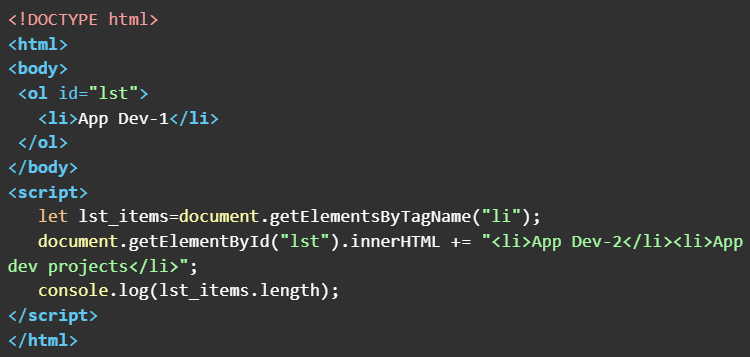 What will be the output in the console window when the above HTML doc is rendered on the browser ?
What will be the output in the console window when the above HTML doc is rendered on the browser ?Text of the picture (copyable)
```html
<!DOCTYPE html>
<html>
<body>
    <ol id="lst">
        <li>App Dev-1</li>
    </ol>
</body>
<script>
    let lst_items=document.getElementsByTagName("li");
    document.getElementById("lst").innerHTML += "<li>App Dev-2</li><li>App dev projects</li>";
    console.log(lst_items.length);
</script>
</html>
```- 1
- 2
- 3
- 4
Which of the following is/are True about Web Applications?
- All web applications run entirely in the client's browser without requiring a server.
- Web applications can interact with backend services using APIs.
- A web application typically consists of frontend, backend and database components.
- Web applications cannot be accessed unless they are installed on the user’s computer.
Which of the following statements correctly differentiates between synchronous and asynchronous updates in frontend development?
- In synchronous updates, the UI waits for the operation to complete, while in asynchronous updates, the UI remains responsive.
- Synchronous execution is blocking, whereas asynchronous execution is non- blocking.
- Asynchronous updates are preferred for network requests and background tasks, while synchronous is best for quick operations.
- Both synchronous and asynchronous updates allow the browser to continue execution without waiting.
Which of the following is the correct way to add a click event listener to a button with id="myBtn" in JavaScript?

text
```javascript
document.getElementById("myBtn").onclick = function() {alert("Clicked!");
};
```
text
```javascript
document.getElementById("myBtn").addEventListener("click", function() {
    alert("Clicked!");
});
```
text
```html <button onclick="alert('Clicked!')">Click Me</button> ```- All of these
Text of the picture (copyable)
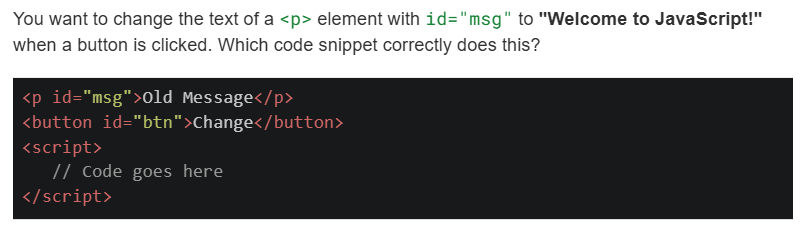
You want to change the text of a `<p>` element with `id="msg"` to "Welcome to JavaScript!" when a button is clicked. Which code snippet correctly does this?

```html
<p id="msg">Old Message</p>
<button id="btn">Change</button>
<script>
    // Code goes here
</script>
```
text
```javascript
document.getElementById("btn").onclick = function() {
    document.getElementById("msg").innerHTML = "Welcome to JavaScript!";
};
```
text
```javascript
document.getElementById("btn").addEventListener("click", function() {
    msg.text = "Welcome to JavaScript!";
});
```
text
```javascript document.querySelector("#btn").addEventListener("click", function() { document.querySelector("#msg").innerText = "Welcome to JavaScript!"; }); ```- Both and
text
```javascript
document.getElementById("btn").onclick = function() {
    document.getElementById("msg").innerHTML = "Welcome to JavaScript!";
};
```
Text of the picture (copyable)
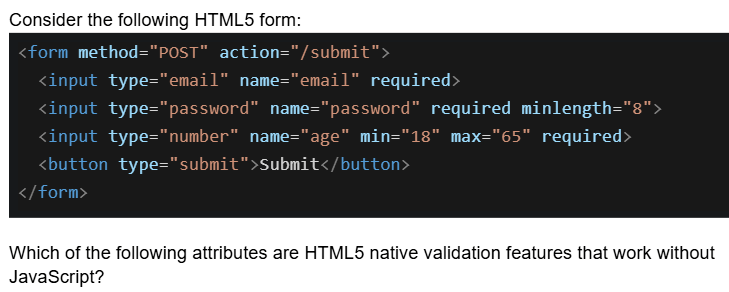
Consider the following HTML5 form:

```html
<form method="POST" action="/submit">
    <input type="email" name="email" required>
    <input type="password" name="password" required minlength="8">
    <input type="number" name="age" min="18" max="65" required>
    <button type="submit">Submit</button>
</form>
```

Which of the following attributes are HTML5 native validation features that work without JavaScript?- required, minlength, and type="email"
- min, max, and minlength
- required, type="password", and action
- type="email", min, max, minlength, and required
Which statements about frontend and backend validation are TRUE?
- Frontend validation (HTML5/JavaScript) is sufficient for security
- Frontend validation improves user experience by providing immediate feedback
- Backend validation is mandatory for security because frontend can be bypassed
- Backend validation should validate the same constraints as frontend
Which of the following are handled by the browser and not the Flask server?
- Parsing HTML
- Auto-filling saved form data
- URL routing
- JavaScript execution
Text of the picture (copyable)
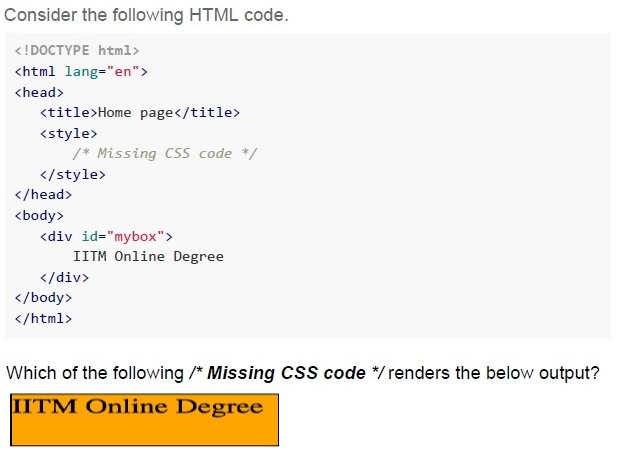
Consider the following HTML code.

```html
<!DOCTYPE html>
<html lang="en">
<head>
    <title>Home page</title>
    <style>
        /* Missing CSS code */
    </style>
</head>
<body>
    <div id="mybox">
        IITM Online Degree
    </div>
</body>
</html>
```

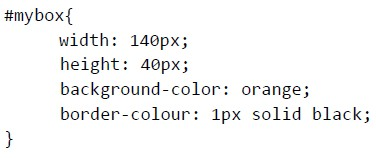
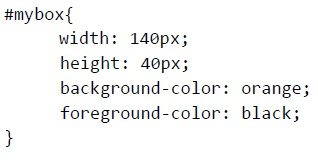
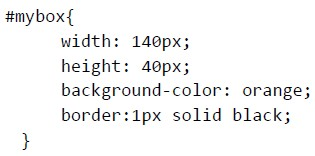
Which of the following /* Missing CSS code */ renders the below output?

A rectangular box with an orange background and a thin dark border, containing the text "IITM Online Degree" in a dark, bold font.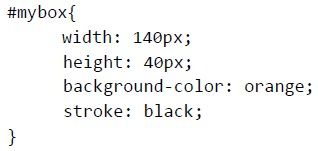
text
```css
#mybox{
    width: 140px;
    height: 40px;
    background-color: orange;
    stroke: black;
}
```
text
```css
#mybox{
    width: 140px;
    height: 40px;
    background-color: orange;
    border-colour: 1px solid black;
}
```
text
```css
#mybox{
    width: 140px;
    height: 40px;
    background-color: orange;
    foreground-color: black;
}
```
text
```css
#mybox{
    width: 140px;
    height: 40px;
    background-color: orange;
    border:1px solid black;
}
```
Text of the picture (copyable)
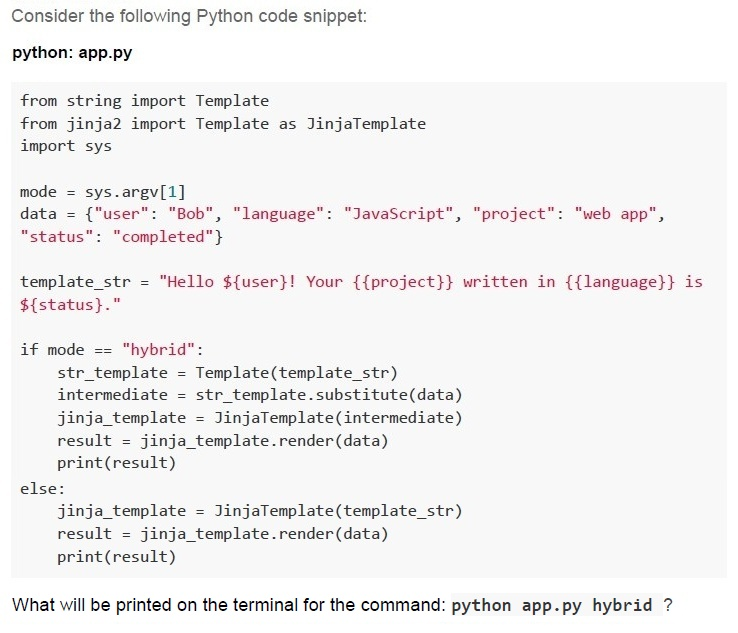
Consider the following Python code snippet:

**python: app.py**

```python
from string import Template
from jinja2 import Template as JinjaTemplate
import sys

mode = sys.argv[1]
data = {"user": "Bob", "language": "JavaScript", "project": "web app",
        "status": "completed"}

template_str = "Hello ${user}! Your {{project}} written in {{language}} is ${status}."

if mode == "hybrid":
    str_template = Template(template_str)
    intermediate = str_template.substitute(data)
    jinja_template = JinjaTemplate(intermediate)
    result = jinja_template.render(data)
    print(result)
else:
    jinja_template = JinjaTemplate(template_str)
    result = jinja_template.render(data)
    print(result)
```

What will be printed on the terminal for the command: `python app.py hybrid` ?
text
```
Hello ${user}! Your {{project}} written in {{language}} is
${status}.
```
text
```
Hello Bob! Your {{project}} written in {{language}} is completed.
```
text
Hello Bob! Your web app written in JavaScript is completed.

text
```
Hello ${user}! Your web app written in JavaScript is ${status}.
```
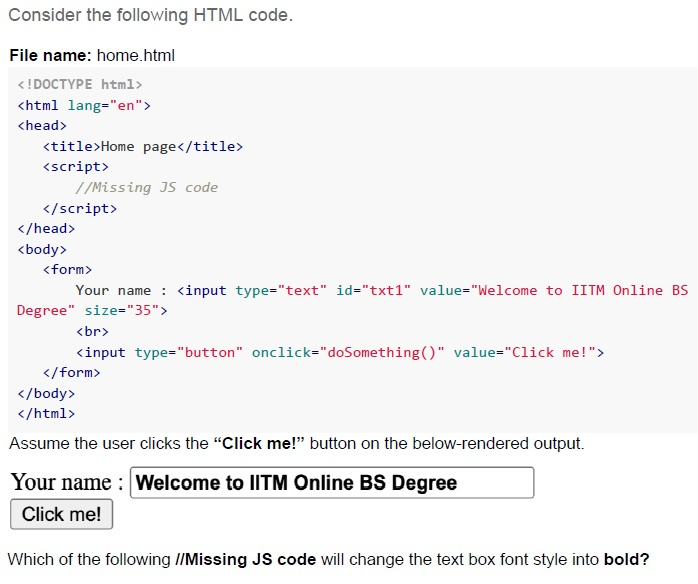
Text of the picture (copyable)
Consider the following HTML code.

**File name: home.html**

```html
<!DOCTYPE html>
<html lang="en">
<head>
    <title>Home page</title>
    <script>
        //Missing JS code
    </script>
</head>
<body>
    <form>
        Your name : <input type="text" id="txt1" value="Welcome to IITM Online BS Degree" size="35">
        <br>
        <input type="button" onclick="doSomething()" value="Click me!">
    </form>
</body>
</html>
```

Assume the user clicks the “**Click me!**” button on the below-rendered output.

Your name : [text input field with value "Welcome to IITM Online BS Degree"]
[button with text "Click me!"]

Which of the following //Missing JS code will change the text box font style into **bold**?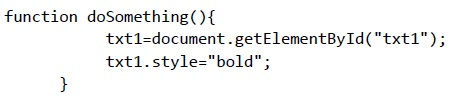
text
```javascript
function doSomething(){
    txt1=document.getElementById("txt1");
    txt1.style="bold";
}
```
text
```javascript
function doSomething(){
    document.getElementById("txt1").style="bold";
}
```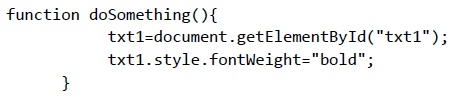
text
```javascript
function doSomething(){
    txt1=document.getElementById("txt1");
    txt1.style.fontWeight="bold";
}
```
text
```javascript
function doSomething(){
    document.getElementById("txt1").style.fontWeight="bold";
}
```
Which of the following statements BEST describes a key advantage of Jinja2 server-side rendering over JavaScript/JSON-based client-side rendering?
- It guarantees that dynamic updates on user interactions never requireadditional data fetches.
- It provides faster initial page load and improved Search Engine Optimizationwithout requiring client-side template logic.
- It allows the client to handle all template rendering, reducing load on theserver.
- None of these
What is the right syntax to use an external JavaScript file(.js) into the current html file?

text
```html
<script src="jsfile.js"></script>
```

text
```html
<script href="jsfile.js"></script>
```

text
```html
<import src="jsfile.js"></import>
```

text
```html
<import link="jsfile.js"></import>
```
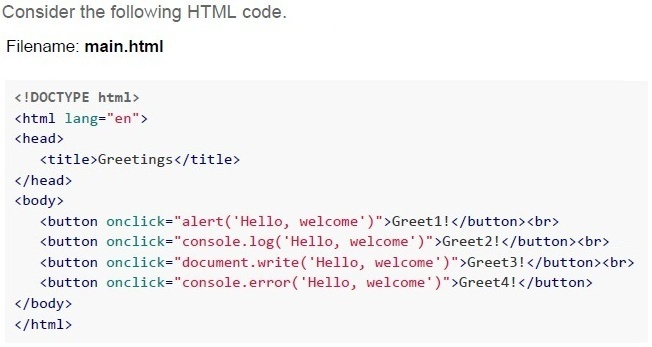
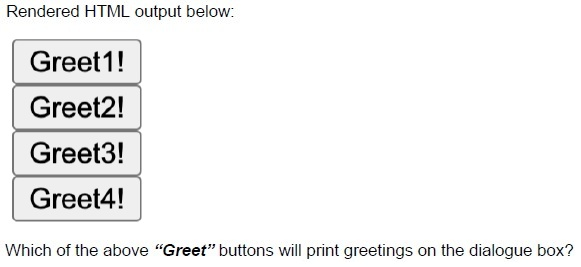
Text of the picture (copyable)
Consider the following HTML code.
Filename: main.html

```html
<!DOCTYPE html>
<html lang="en">
<head>
    <title>Greetings</title>
</head>
<body>

    <button onclick="alert('Hello, welcome')">Greet1!</button><br>
    <button onclick="console.log('Hello, welcome')">Greet2!</button><br>
    <button onclick="document.write('Hello, welcome')">Greet3!</button><br>
    <button onclick="console.error('Hello, welcome')">Greet4!</button>

</body>
</html>
```
Rendered HTML output below:

[Greet1!] (button)
[Greet2!] (button)
[Greet3!] (button)
[Greet4!] (button)

Which of the above “Greet” buttons will print greetings on the dialogue box?- Greet4
- Greet3
- Greet2
- Greet1
Which of the following statements is/are false about caching in REST APIs?
- Caching allows storing server responses in a proxy or frontend so that a clientneed not make requests to the server for the same resources repeatedly.
- Caching degrades the overall quality of service and increases load on theservers.
- Browsers treat all GET and POST requests cacheable by default.
- Caching optimizes the network by increasing the latency.
Comprehension passage for this question
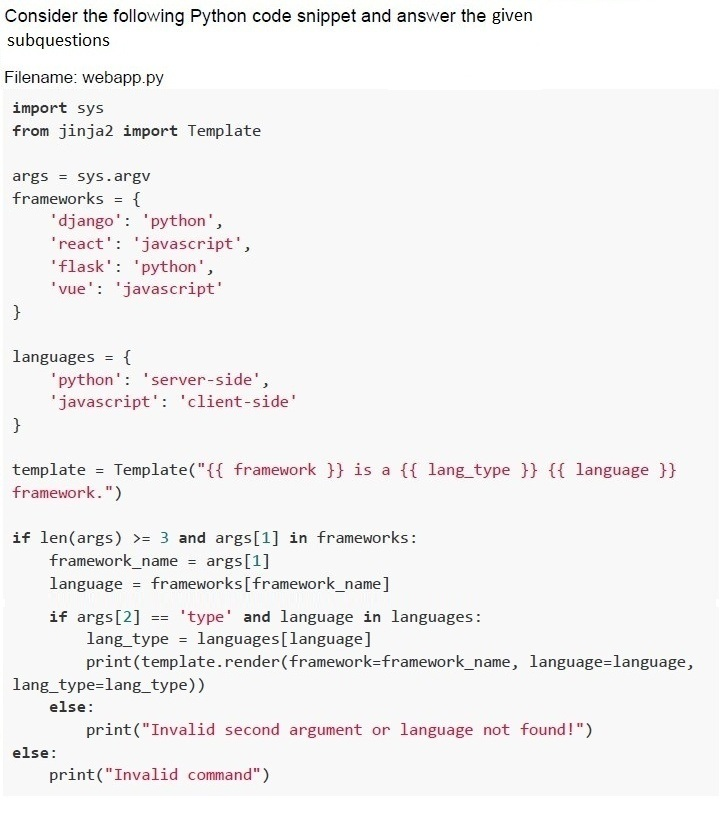

Text of the picture (copyable)
What will be the output for command line input,
```
python webapp.py react type ?
```

text
react is a client-side javascript framework

text
react is a server-side python framework

text
Invalid second argument or Language not found!

text
Invalid command
Comprehension passage for this question

Text of the picture (copyable)
What will be the output for command line
input, python webapp.py django python ?

text
django is a client-side javascript framework

text
django is a server-side python framework

text
Invalid second argument or language not found!

text
Invalid command
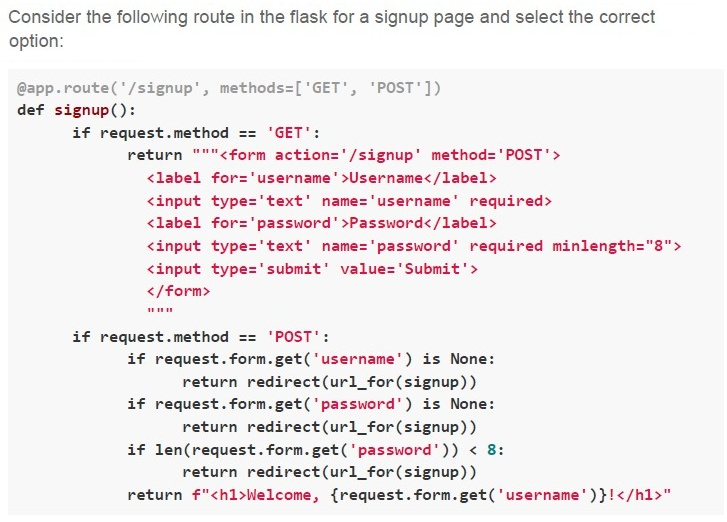
Text of the picture (copyable)
Consider the following route in the flask for a signup page and select the correct option:

```python
@app.route('/signup', methods=['GET', 'POST'])
def signup():
    if request.method == 'GET':
        return """<form action='/signup' method='POST'>
            <label for='username'>Username</label>
            <input type='text' name='username' required>
            <label for='password'>Password</label>
            <input type='text' name='password' required minlength="8">
            <input type='submit' value='Submit'>
        </form>
        """
    if request.method == 'POST':
        if request.form.get('username') is None:
            return redirect(url_for(signup))
        if request.form.get('password') is None:
            return redirect(url_for(signup))
        if len(request.form.get('password')) < 8:
            return redirect(url_for(signup))
        return f"<h1>Welcome, {request.form.get('username')}!</h1>"
```- The signup page is dynamically generated.
- The signup page uses server-side rendering.
- The signup page uses frontend validation.
- The signup page uses backend validation.
Consider the following HTML code.
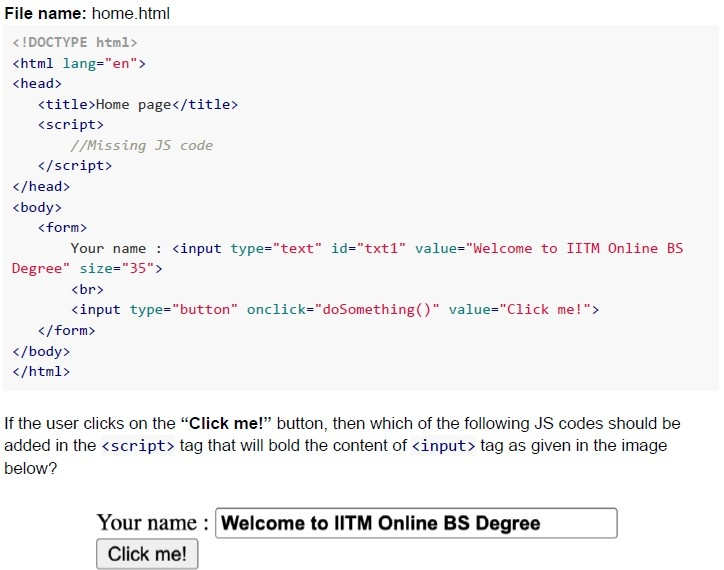 Consider the following HTML code.
Consider the following HTML code.
Text of the picture (copyable)
File name: home.html

```html
<!DOCTYPE html>
<html lang="en">
<head>
    <title>Home page</title>
    <script>
        //Missing JS code
    </script>
</head>
<body>
    <form>
        Your name : <input type="text" id="txt1" value="Welcome to IITM Online BS Degree" size="35">
        <br>
        <input type="button" onclick="doSomething()" value="Click me!">
    </form>
</body>
</html>
```

If the user clicks on the “**Click me!**” button, then which of the following JS codes should be added in the `<script>` tag that will bold the content of `<input>` tag as given in the image below?

UI screenshot:
- Label: Your name :
- Input field: Welcome to IITM Online BS Degree (text is bolded)
- Button: Click me!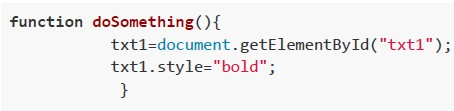
text
```javascript
function doSomething(){
    txt1=document.getElementById("txt1");
    txt1.style="bold";
}
```
text
```javascript
function doSomething(){
    document.getElementById("txt1").style="bold";
}
```
text
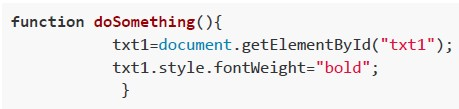
```javascript
function doSomething(){
    txt1=document.getElementById("txt1");
    txt1.style.fontWeight="bold";
}
```
text
```javascript
function doSomething(){
    document.getElementById("txt1").style.fontWeight="bold";
}
```
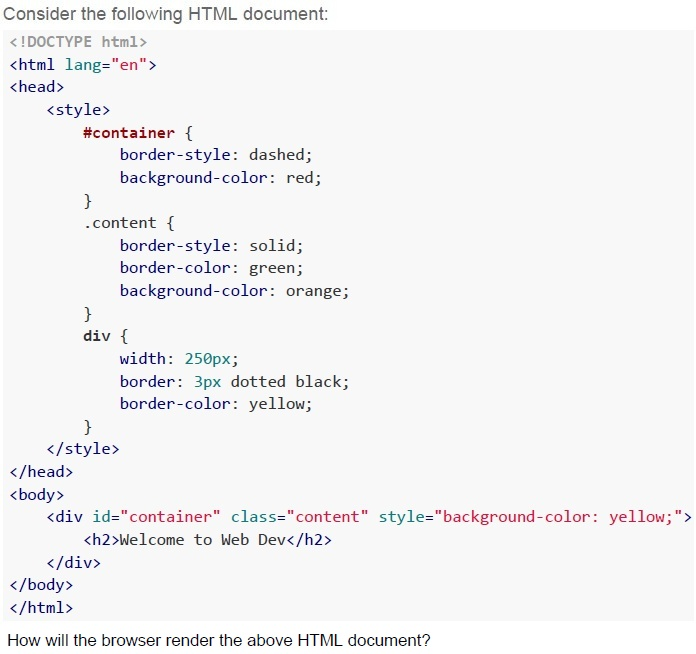
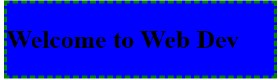
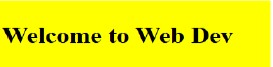
Text of the picture (copyable)
Consider the following HTML document:

```html
<!DOCTYPE html>
<html lang="en">
<head>
    <style>
        #container {
            border-style: dashed;
            background-color: red;
        }
        .content {
            border-style: solid;
            border-color: green;
            background-color: orange;
        }
        div {
            width: 250px;
            border: 3px dotted black;
            border-color: yellow;
        }
    </style>
</head>
<body>
    <div id="container" class="content" style="background-color: yellow;">
        <h2>Welcome to Web Dev</h2>
    </div>
</body>
</html>
```

How will the browser render the above HTML document?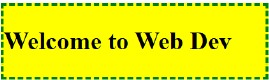
text
Welcome to Web Dev
text
Welcome to Web Dev
text
Welcome to Web Dev
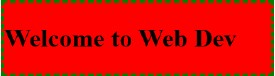
text
This is a screenshot of a web page element. It shows a red rectangular box with a dotted green border. Inside the box, the text "Welcome to Web Dev" is displayed in black, bold font.
Consider the following HTML document.
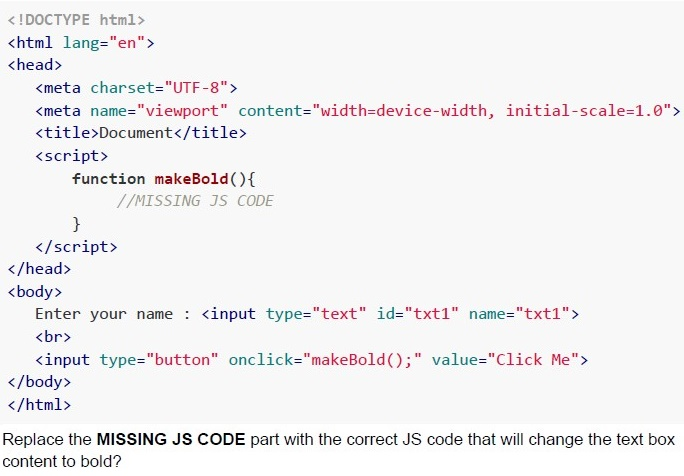 Consider the following HTML document.
Consider the following HTML document. Text of the picture (copyable)
```html
<!DOCTYPE html>
<html lang="en">
<head>
    <meta charset="UTF-8">
    <meta name="viewport" content="width=device-width, initial-scale=1.0">
    <title>Document</title>
    <script>
        function makeBold(){
            //MISSING JS CODE
        }
    </script>
</head>
<body>
    Enter your name : <input type="text" id="txt1" name="txt1">
    <br>
    <input type="button" onclick="makeBold();" value="Click Me">
</body>
</html>
```
Replace the **MISSING JS CODE** part with the correct JS code that will change the text box content to bold?
text
```javascript
t=document.getElementsByName("txt1").value;
t.style.fontWeight="bold";
```
text
```javascript
t=document.getElementById("txt1").value;
t.style.fontWeight="bold";
```
text
```javascript
t=document.getElementById("txt1");
t.style.fontWeight="bold";
```
text
```javascript
t=document.getElementById("txt1");
t.style.fontWeight="bold";
```
Match the following terms with their correct descriptions:
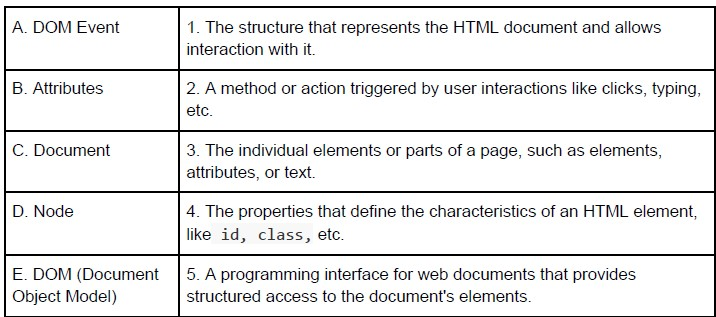 Match the following terms with their correct descriptions:
Match the following terms with their correct descriptions:
Text of the picture (copyable)
| | |
| :--- | :--- |
| A. DOM Event | 1. The structure that represents the HTML document and allows interaction with it. |
| B. Attributes | 2. A method or action triggered by user interactions like clicks, typing, etc. |
| C. Document | 3. The individual elements or parts of a page, such as elements, attributes, or text. |
| D. Node | 4. The properties that define the characteristics of an HTML element, like `id`, `class`, etc. |
| E. DOM (Document Object Model) | 5. A programming interface for web documents that provides structured access to the document's elements. |
- A → 2, B → 4, C → 1, D → 3, E → 5
- A → 3, B → 4, C → 1, D → 2, E → 5
- A → 2, B → 4, C → 5, D → 3, E → 1
- A → 3, B → 4, C → 5, D → 2, E → 1
Consider the following HTML document.
 Consider the following HTML document.
How will the browser render above HTML file?
Consider the following HTML document.
How will the browser render above HTML file?
Consider the following HTML document.
How will the browser render above HTML file?Text of the picture (copyable)
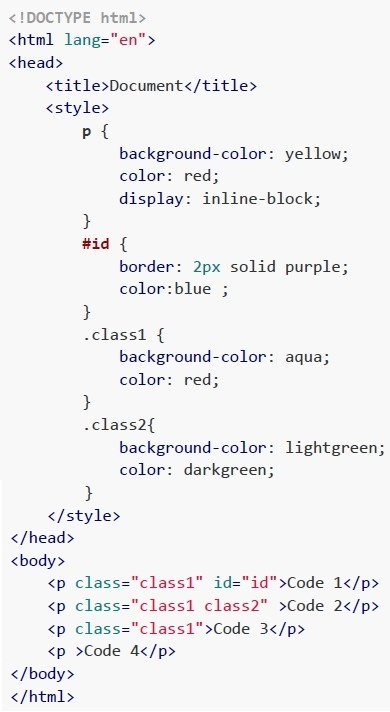
```html
<!DOCTYPE html>
<html lang="en">
<head>
    <title>Document</title>
    <style>
        p {
            background-color: yellow;
            color: red;
            display: inline-block;
        }
        #id {
            border: 2px solid purple;
            color:blue ;
        }
        .class1 {
            background-color: aqua;
            color: red;
        }
        .class2{
            background-color: lightgreen;
            color: darkgreen;
        }
    </style>
</head>
<body>
    <p class="class1" id="id">Code 1</p>
    <p class="class1 class2" >Code 2</p>
    <p class="class1">Code 3</p>
    <p >Code 4</p>
</body>
</html>
```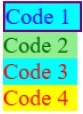
text
This is a diagram showing four stacked rectangular blocks, each with text.
The top block is light blue with a purple border and contains the text "Code 1" in blue.
The second block is light green and contains the text "Code 2" in green.
The third block is light blue and contains the text "Code 3" in brown.
The bottom block is yellow and contains the text "Code 4" in orange.
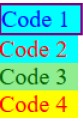
text
This is a diagram showing four colored horizontal bars, each with text.

- Top bar (cyan with a purple border): Code 1
- Second bar (cyan): Code 2
- Third bar (light green): Code 3
- Bottom bar (yellow): Code 4

text
Code 1 Code 2 Code 3 Code 4

text
The image displays four rectangular boxes arranged horizontally.
1. The first box has a purple border and a light blue fill. Inside, the text "Code 1" is written in blue.
2. The second box has a light green fill. Inside, the text "Code 2" is written in green.
3. The third box has a light blue fill. Inside, the text "Code 3" is written in red.
4. The fourth box has a yellow fill. Inside, the text "Code 4" is written in red.
Consider the following HTML document.
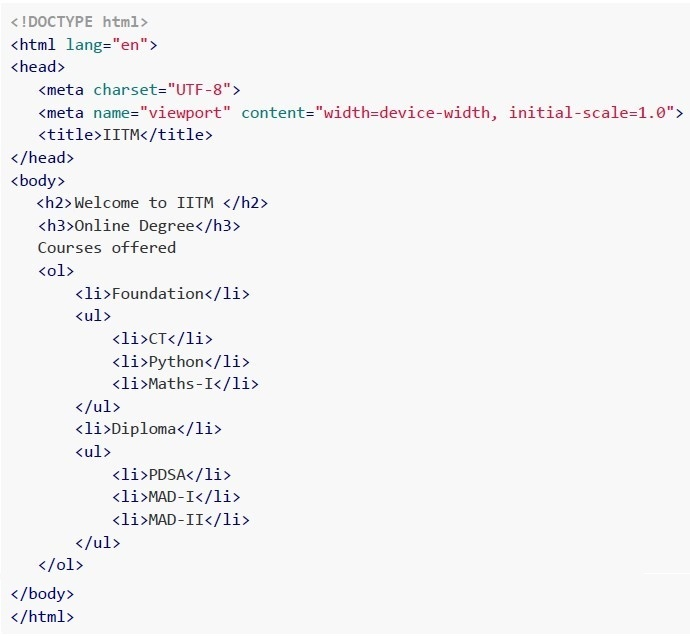 Consider the following HTML document.
Which of the following statements is/are correct about the above code snippet?
Consider the following HTML document.
Which of the following statements is/are correct about the above code snippet?
Consider the following HTML document.
Which of the following statements is/are correct about the above code snippet?Text of the picture (copyable)
```html
<!DOCTYPE html>
<html lang="en">
<head>
    <meta charset="UTF-8">
    <meta name="viewport" content="width=device-width, initial-scale=1.0">
    <title>IITM</title>
</head>
<body>
    <h2>Welcome to IITM </h2>
    <h3>Online Degree</h3>
    Courses offered
    <ol>
        <li>Foundation</li>
        <ul>
            <li>CT</li>
            <li>Python</li>
            <li>Maths-I</li>
        </ul>
        <li>Diploma</li>
        <ul>
            <li>PDSA</li>
            <li>MAD-I</li>
            <li>MAD-II</li>
        </ul>
    </ol>
</body>
</html>
```- List Items, Foundations and Diploma are numbered 1 and 2
- List Items, Foundations and Diploma are bulleted
- List Items, PDSA, MAD-I and MAD-II are numbered 1, 2 and 3
- List Items, PDSA, MAD-I and MAD-II are bulleted
Consider the following HTML document “form.html” and the flask route given in “app.py”. Assume all the required methods are imported, Which of the following statements is/are correct.
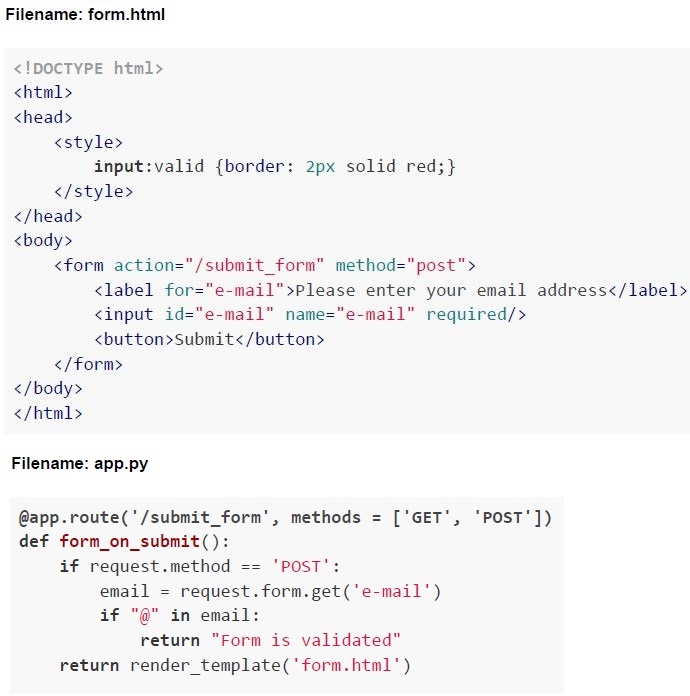 Consider the following HTML document “form.html” and the flask route given in “app.py”. Assume all the required methods are imported, Which of the following statements is/are correct.
Consider the following HTML document “form.html” and the flask route given in “app.py”. Assume all the required methods are imported, Which of the following statements is/are correct.
Text of the picture (copyable)
Filename: form.html

```html
<!DOCTYPE html>
<html>
<head>
    <style>
        input:valid {border: 2px solid red;}
    </style>
</head>
<body>
    <form action="/submit_form" method="post">
        <label for="e-mail">Please enter your email address</label>
        <input id="e-mail" name="e-mail" required/>
        <button>Submit</button>
    </form>
</body>
</html>
```

Filename: app.py

```python
@app.route('/submit_form', methods = ['GET', 'POST'])
def form_on_submit():
    if request.method == 'POST':
        email = request.form.get('e-mail')
        if "@" in email:
            return "Form is validated"
    return render_template('form.html')
```- The above HTML document has frontend validation incorporated, usingHTML5 form validation.
- The above HTML document has only backend validation incorporated.
- The above HTML document has both frontend and backend validationincorporated.
- If the e-mail input field is left blank, the border colour of the input field will bered.
Which of the following statements are correct?
- HTML defines the styling, while CSS defines the content
- HTML defines the content, while CSS defines the styling
- JavaScript is always the core part of an application’s frontend
- JavaScript provides additional functionality at the frontend
Consider the following HTML document.
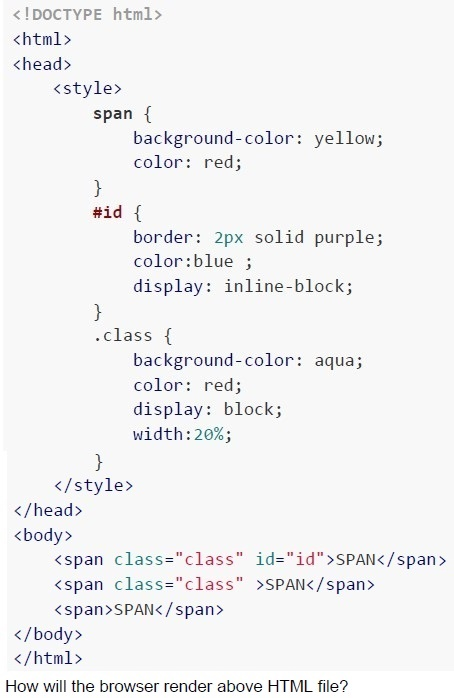 Consider the following HTML document.
Consider the following HTML document. Text of the picture (copyable)
```html
<!DOCTYPE html>
<html>
<head>
    <style>
        span {
            background-color: yellow;
            color: red;
        }
        #id {
            border: 2px solid purple;
            color:blue ;
            display: inline-block;
        }
        .class {
            background-color: aqua;
            color: red;
            display: block;
            width:20%;
        }
    </style>
</head>
<body>
    <span class="class" id="id">SPAN</span>
    <span class="class" >SPAN</span>
    <span>SPAN</span>
</body>
</html>
```
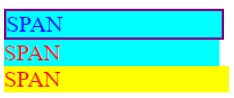
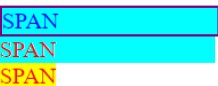
How will the browser render above HTML file?
text
The image displays three rectangular boxes arranged horizontally.

1.  The first box is wide, filled with a bright cyan color, and has a dark purple border. Inside, the word "SPAN" is written in blue text.
2.  The second box is narrower, filled with a bright cyan color, and has no visible border. Inside, the word "SPAN" is written in red text.
3.  The third box is also narrower, filled with a bright yellow color, and has no visible border. Inside, the word "SPAN" is written in orange text.
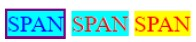
text
The image displays three rectangular blocks, each containing the text "SPAN".
1. The first block has a cyan background with a purple border. The text "SPAN" is dark blue.
2. The second block has a cyan background with no visible border. The text "SPAN" is red with a slight shadow effect.
3. The third block has a yellow background with no visible border. The text "SPAN" is orange.
text
The image displays three horizontal rectangular blocks stacked vertically.
The top block has a cyan background with the word "SPAN" in blue text. It has a purple border around it.
The middle block has a cyan background with the word "SPAN" in red text.
The bottom block has a yellow background with the word "SPAN" in orange text.
text
The image displays three horizontal rectangular blocks, stacked vertically.
1. The top block has a light blue background with a purple border. Inside, the word "SPAN" is written in blue text.
2. The middle block has a light blue background. Inside, the word "SPAN" is written in red text.
3. The bottom block has a yellow background. Inside, the word "SPAN" is written in orange text.
Consider the following Python code snippet “code.py”.
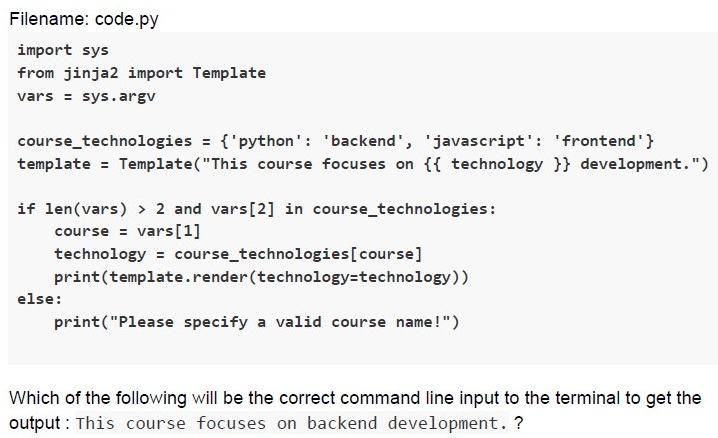 Consider the following Python code snippet “code.py”.
Consider the following Python code snippet “code.py”. Text of the picture (copyable)
Filename: code.py

```python
import sys
from jinja2 import Template
vars = sys.argv

course_technologies = {'python': 'backend', 'javascript': 'frontend'}
template = Template("This course focuses on {{ technology }} development.")

if len(vars) > 2 and vars[2] in course_technologies:
    course = vars[1]
    technology = course_technologies[course]
    print(template.render(technology=technology))
else:
    print("Please specify a valid course name!")
```

Which of the following will be the correct command line input to the terminal to get the output: This course focuses on backend development. ?
text
python code.py course python

text
python code.py python javascript

text
python code.py python python

text
```
python code.py python backend
```
Consider the following flask application.
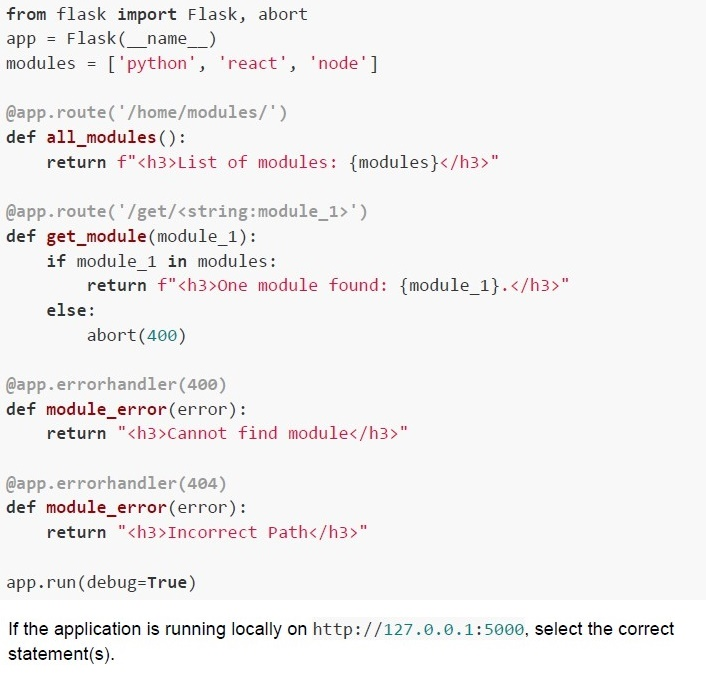 Consider the following flask application.
Consider the following flask application. Text of the picture (copyable)
```python
from flask import Flask, abort
app = Flask(__name__)
modules = ['python', 'react', 'node']

@app.route('/home/modules/')
def all_modules():
    return f"<h3>List of modules: {modules}</h3>"

@app.route('/get/<string:module_1>')
def get_module(module_1):
    if module_1 in modules:
        return f"<h3>One module found: {module_1}.</h3>"
    else:
        abort(400)

@app.errorhandler(400)
def module_error(error):
    return "<h3>Cannot find module</h3>"

@app.errorhandler(404)
def module_error(error):
    return "<h3>Incorrect Path</h3>"

app.run(debug=True)
```
If the application is running locally on http://127.0.0.1:5000, select the correct statement(s).
text
For the URL, http://127.0.0.1:5000/home/modules, the browser will render,
List of modules: ['python', 'react', 'node']

text
For the URL, http://127.0.0.1:5000/home/modules, the browser will render,
**Incorrect Path**

text
For the URL, http://127.0.0.1:5000/get/vuejs, the browser will render;
Cannot find module

text
For the URL, http://127.0.0.1:5000/get/react/, the browser will render,
**One module found: react.**
Text of the picture (copyable)
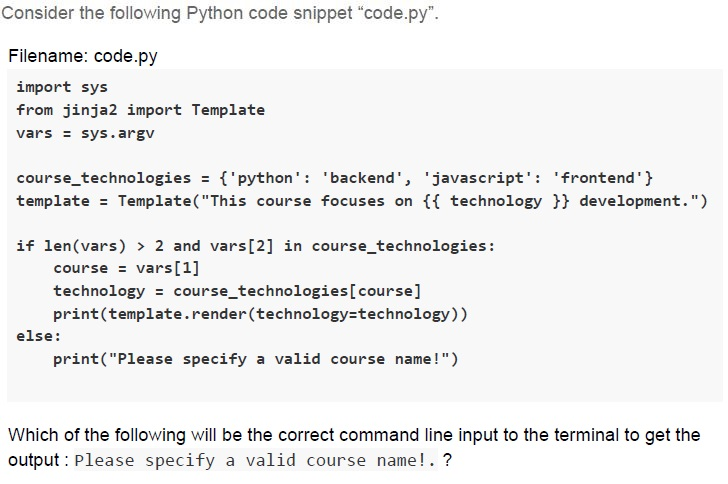
Consider the following Python code snippet "code.py".

Filename: code.py
```python
import sys
from jinja2 import Template
vars = sys.argv

course_technologies = {'python': 'backend', 'javascript': 'frontend'}
template = Template("This course focuses on {{ technology }} development.")

if len(vars) > 2 and vars[2] in course_technologies:
    course = vars[1]
    technology = course_technologies[course]
    print(template.render(technology=technology))
else:
    print("Please specify a valid course name!")
```

Which of the following will be the correct command line input to the terminal to get the output: Please specify a valid course name!.?
text
```
python code.py course python
```

text
```
python code.py python javascript
```

text
```
python code.py python python
```

text
python code.py python backend
Text of the picture (copyable)
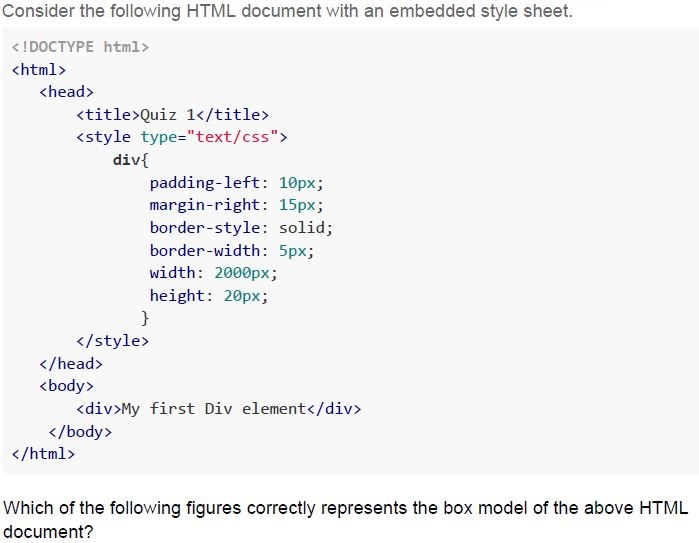
Consider the following HTML document with an embedded style sheet.

```html
<!DOCTYPE html>
<html>
  <head>
    <title>Quiz 1</title>
    <style type="text/css">
      div {
        padding-left: 10px;
        margin-right: 15px;
        border-style: solid;
        border-width: 5px;
        width: 2000px;
        height: 20px;
      }
    </style>
  </head>
  <body>
    <div>My first Div element</div>
  </body>
</html>
```

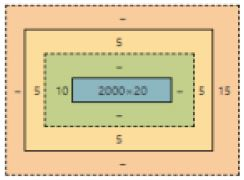
Which of the following figures correctly represents the box model of the above HTML document?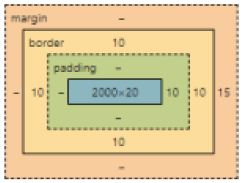
text
This is a diagram showing the CSS box model.
It consists of nested rectangular boxes with labels and numerical values.
The outermost box is labeled "margin" and has dashed borders.
Inside the margin box, there is a box labeled "border" with solid borders.
Inside the border box, there is a box labeled "padding" with dashed borders.
Inside the padding box, there is a solid blue box with the label "2000x20".

Values are placed around the boxes:
- Around the "margin" box:
  - Top: "-"
  - Left: "-"
  - Right: "15"
  - Bottom: "-"
- Around the "border" box:
  - Top: "10"
  - Left: "10"
  - Right: "10"
  - Bottom: "10"
- Around the "padding" box:
  - Top: "-"
  - Left: "-"
  - Right: "10"
  - Bottom: "-"
text
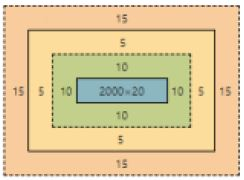
This is a diagram showing nested rectangular boxes with labels indicating dimensions or spacing.

The outermost box is light orange with a dashed border.
Inside the light orange box, there is a larger solid orange box.
Between the light orange dashed border and the solid orange box, there are labels:
- Top: `-`
- Right: `15`
- Bottom: `-`
- Left: `-`

Inside the solid orange box, there is a solid light yellow box.
Between the solid orange box and the solid light yellow box, there are labels:
- Top: `5`
- Right: `5`
- Bottom: `5`
- Left: `5`

Inside the solid light yellow box, there is a solid light green box with a dashed border.
Between the solid light yellow box and the solid light green dashed box, there are labels:
- Top: `-`
- Right: `-`
- Bottom: `-`
- Left: `-`

Inside the solid light green dashed box, there is a solid blue box.
Between the solid light green dashed box and the solid blue box, there are labels:
- Top: `-`
- Right: `5`
- Bottom: `-`
- Left: `10`

Inside the solid blue box, there is the text `2000 × 20`.
text
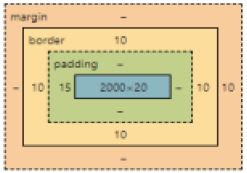
This is a diagram showing nested rectangular boxes with numerical labels indicating dimensions or spacing.

The outermost box is a dashed orange rectangle. It has labels "15" on its top, bottom, left, and right sides.

Inside the outermost orange box, there is a solid yellow rectangle. It has labels "5" on its top, bottom, left, and right sides.

Inside the yellow rectangle, there is a solid green rectangle with a dashed border. It has labels "10" on its top, bottom, left, and right sides.

Inside the green rectangle, there is a solid blue rectangle. This blue rectangle has the text "2000×20" inside it.
text
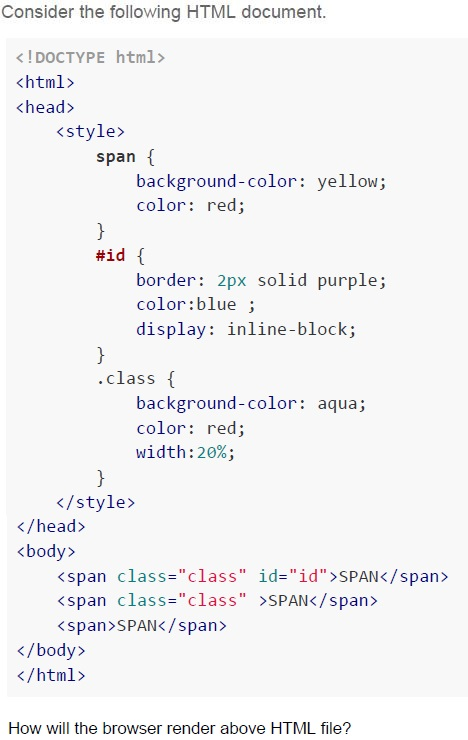
This is a diagram illustrating the CSS box model.

It shows a series of nested rectangular boxes, from outermost to innermost:

1.  **Outermost box (orange, dashed border):** Labeled "margin".
    *   Values on its sides: "-", "-", "-", "-".
2.  **Second box (orange, solid border):** Labeled "border".
    *   Values on its sides: "10", "10", "10", "10".
3.  **Third box (light green, dashed border):** Labeled "padding".
    *   Values on its sides: "-", "15", "-", "-".
4.  **Innermost box (blue, solid border):** No label.
    *   Value inside: "2000×20".
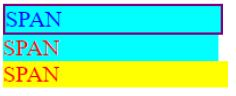
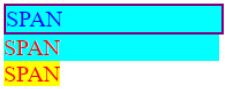
Text of the picture (copyable)
Consider the following HTML document.

```html
<!DOCTYPE html>
<html>
<head>
    <style>
        span {
            background-color: yellow;
            color: red;
        }
        #id {
            border: 2px solid purple;
            color:blue ;
            display: inline-block;
        }
        .class {
            background-color: aqua;
            color: red;
            width:20%;
        }
    </style>
</head>
<body>
    <span class="class" id="id">SPAN</span>
    <span class="class" >SPAN</span>
    <span>SPAN</span>
</body>
</html>
```

How will the browser render above HTML file?
text
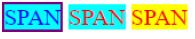
The image displays three rectangular boxes arranged horizontally.
The first box on the left is wide, with a cyan background and a dark purple border. Inside, the word "SPAN" is written in blue text.
To the right of the first box, there are two smaller boxes.
The second box has a light cyan background and no visible border. Inside, the word "SPAN" is written in red text.
The third box, immediately to the right of the second, has a yellow background and no visible border. Inside, the word "SPAN" is written in orange text.
text
The image displays three rectangular blocks arranged horizontally.
1. The first block has a cyan background with a purple border and contains the text "SPAN" in blue.
2. The second block has a cyan background with no visible border and contains the text "SPAN" in red.
3. The third block has a yellow background with no visible border and contains the text "SPAN" in orange.
text
This is a UI screenshot.
It shows three horizontal rectangular blocks stacked vertically.
The top block is cyan with a dark blue border and contains the text "SPAN" in blue.
The middle block is cyan and contains the text "SPAN" in red.
The bottom block is yellow and contains the text "SPAN" in red.
text
The image displays three lines of text, each with a background color.
1. The top line has the text "SPAN" in blue, with a cyan background and a purple border.
2. The middle line has the text "SPAN" in red, with a cyan background.
3. The bottom line has the text "SPAN" in orange, with a yellow background.
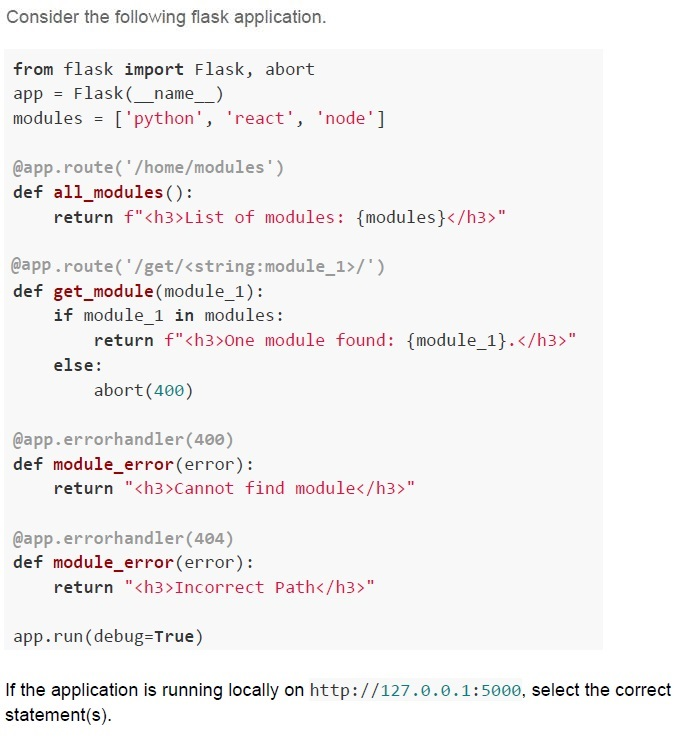
Text of the picture (copyable)
Consider the following flask application.

```python
from flask import Flask, abort
app = Flask(__name__)
modules = ['python', 'react', 'node']

@app.route('/home/modules')
def all_modules():
    return f"<h3>List of modules: {modules}</h3>"

@app.route('/get/<string:module_1>/')
def get_module(module_1):
    if module_1 in modules:
        return f"<h3>One module found: {module_1}.</h3>"
    else:
        abort(400)

@app.errorhandler(400)
def module_error(error):
    return "<h3>Cannot find module</h3>"

@app.errorhandler(404)
def module_error(error):
    return "<h3>Incorrect Path</h3>"

app.run(debug=True)
```

If the application is running locally on http://127.0.0.1:5000, select the correct statement(s).
text
For the URL, http://127.0.0.1:5000/home/modules/, the browser will
render;
List of modules: ['python', 'react', 'node']

text
For the URL, http://127.0.0.1:5000/home/modules, the browser will render;
**Incorrect Path**

text
For the URL, http://127.0.0.1:5000/get/react, the browser will render,
**One module found: react.**

text
For the URL, http://127.0.0.1:5000/get/python/, the browser will render:
**One module found: python.**
Consider the following HTML Document and select the correct statement(s) from the following if a user types the password “mad1password” in the password field letter by letter.
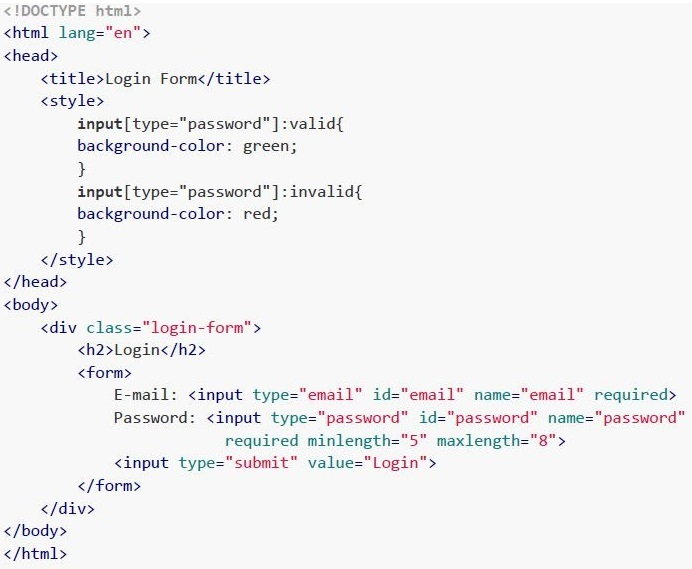 Consider the following HTML Document and select the correct statement(s) from the following if a user types the password “mad1password” in the password field letter by letter.
Consider the following HTML Document and select the correct statement(s) from the following if a user types the password “mad1password” in the password field letter by letter. Text of the picture (copyable)
```html
<!DOCTYPE html>
<html lang="en">
<head>
    <title>Login Form</title>
    <style>
        input[type="password"]:valid{
            background-color: green;
        }
        input[type="password"]:invalid{
            background-color: red;
        }
    </style>
</head>
<body>
    <div class="login-form">
        <h2>Login</h2>
        <form>
            E-mail: <input type="email" id="email" name="email" required>
            Password: <input type="password" id="password" name="password"
            required minlength="5" maxlength="8">
            <input type="submit" value="Login">
        </form>
    </div>
</body>
</html>
```- The HTML form is integrated with backend validation.
- The HTML form is integrated with Frontend HTML5 validation.
- The background colour of the password field remains red for the first 4 letters,then turns green for the next 4 letters, and then again turns red for the remaining letters.
- The background colour of the password field remains red for the first 4 letters,then turns green for the next 4 letters, and then remains green for the remaining allowable letters.
Consider the following HTML document.
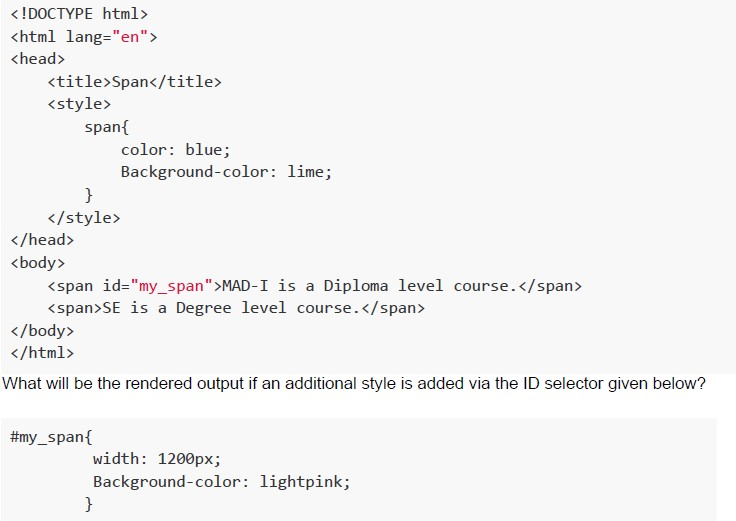 Consider the following HTML document.
Consider the following HTML document. Text of the picture (copyable)
```html
<!DOCTYPE html>
<html lang="en">
<head>
    <title>Span</title>
    <style>
        span{
            color: blue;
            Background-color: lime;
        }
    </style>
</head>
<body>
    <span id="my_span">MAD-I is a Diploma level course.</span>
    <span>SE is a Degree level course.</span>
</body>
</html>
```
What will be the rendered output if an additional style is added via the ID selector given below?

```css
#my_span{
    width: 1200px;
    Background-color: lightpink;
}
```
text
MAD-I is a Diploma level course. SE is a Degree level course.

text
MAD-I is a Diploma level course. SE is a Degree level course.

text
MAD-I is a Diploma level course. SE is a Degree level course.

text
MAD-I is a Diploma level course. SE is a Degree level course
Consider the following Python code snippet.
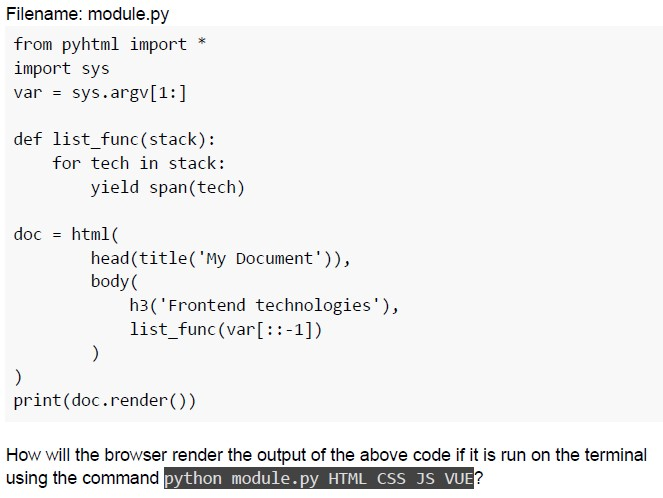 Consider the following Python code snippet.
Consider the following Python code snippet. Text of the picture (copyable)
Filename: module.py

```python
from pyhtml import *
import sys
var = sys.argv[1:]

def list_func(stack):
    for tech in stack:
        yield span(tech)

doc = html(
    head(title('My Document')),
    body(
        h3('Frontend technologies'),
        list_func(var[::-1])
    )
)

print(doc.render())
```

How will the browser render the output of the above code if it is run on the terminal using the command `python module.py HTML CSS JS VUE`?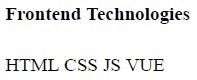
text
Frontend Technologies
HTML CSS JS VUE
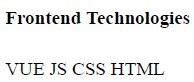
text
Frontend Technologies
VUE JS CSS HTML
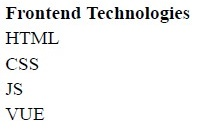
text
Frontend Technologies
HTML
CSS
JS
VUE
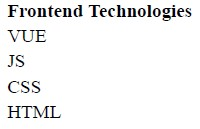
text
Frontend Technologies
VUE
JS
CSS
HTML
Consider the following HTML document.
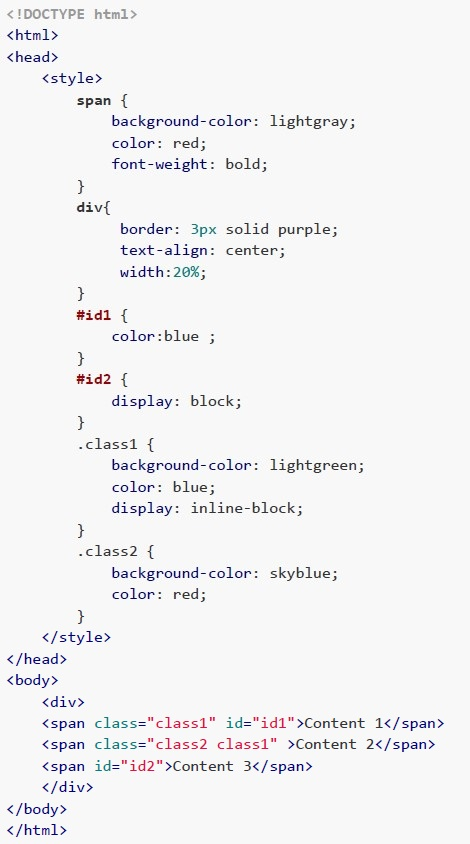 Consider the following HTML document. How will the browser render above HTML file?
Consider the following HTML document. How will the browser render above HTML file?Text of the picture (copyable)
```html
<!DOCTYPE html>
<html>
<head>
    <style>
        span {
            background-color: lightgray;
            color: red;
            font-weight: bold;
        }
        div {
            border: 3px solid purple;
            text-align: center;
            width:20%;
        }
        #id1 {
            color:blue ;
        }
        #id2 {
            display: block;
        }
        .class1 {
            background-color: lightgreen;
            color: blue;
            display: inline-block;
        }
        .class2 {
            background-color: skyblue;
            color: red;
        }
    </style>
</head>
<body>
    <div>
        <span class="class1" id="id1">Content 1</span>
        <span class="class2 class1" >Content 2</span>
        <span id="id2">Content 3</span>
    </div>
</body>
</html>
```
text
A horizontal rectangular box with a purple border. Inside, from left to right, there are three colored sections:
1. A green section with the text "Content 1" in blue.
2. A light blue section with the text "Content 2" in red.
3. A light gray section with the text "Content 3" in red.

text
The image displays a rectangular area with a purple border. Inside, the top half is white, and the bottom half is light gray.

Within the white top half, there are two colored rectangular blocks:
- A green block on the left, containing the text "Content 1" in blue.
- A light blue block on the right, containing the text "Content 2" in blue.

Within the light gray bottom half, there is the text "Content 3" in red, centered horizontally.

text
The image displays a rectangular box with a purple border. Inside, the top section is white, and the bottom section is light gray.

Within the white top section, there are two smaller rectangular boxes:
- The left box is light green and contains the text "Content 1" in blue.
- The right box is light blue and contains the text "Content 2" in red.

Within the light gray bottom section, there is the text "Content 3" in red, centered horizontally.
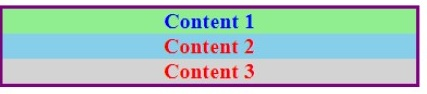
text
This is a diagram of a rectangular box divided horizontally into three sections.
The top section is light green and contains the text "Content 1" in blue.
The middle section is light blue and contains the text "Content 2" in red.
The bottom section is light gray and contains the text "Content 3" in red.
The entire box has a purple border.
Consider the following flask app and the bodies of two index.html files shown in the figure below.
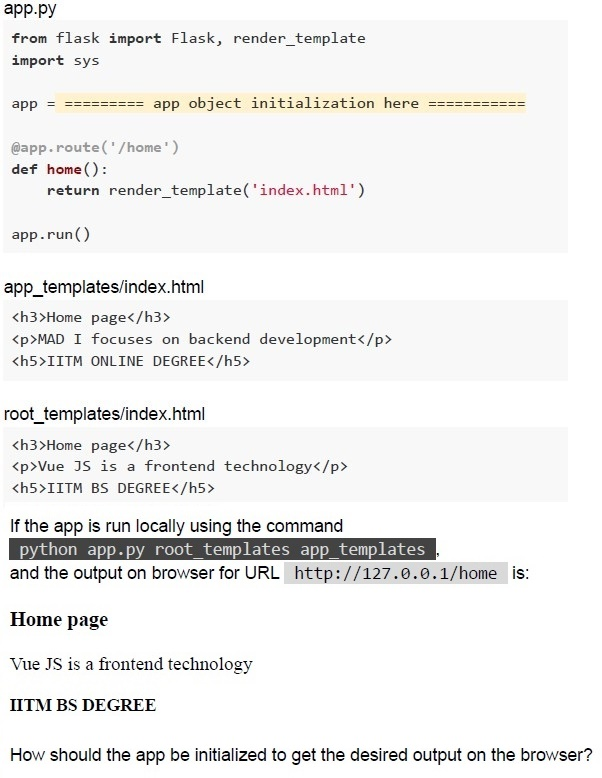 Consider the following flask app and the bodies of two index.html files shown in the figure below.
Consider the following flask app and the bodies of two index.html files shown in the figure below. Text of the picture (copyable)
app.py

```python
from flask import Flask, render_template
import sys

app = ========== app object initialization here ==========

@app.route('/home')
def home():
    return render_template('index.html')

app.run()
```

app_templates/index.html

```html
<h3>Home page</h3>
<p>MAD I focuses on backend development</p>
<h5>IITM ONLINE DEGREE</h5>
```

root_templates/index.html

```html
<h3>Home page</h3>
<p>Vue JS is a frontend technology</p>
<h5>IITM BS DEGREE</h5>
```

If the app is run locally using the command
`python app.py root_templates app_templates`
and the output on browser for URL `http://127.0.0.1/home` is:

Home page

Vue JS is a frontend technology

IITM BS DEGREE

How should the app be initialized to get the desired output on the browser?
text
```python
app = Flask(__name__)
```

text
```python
app = Flask(__name__, templates = sys.argv[1])
```

text
```python
app = Flask(__name__, templates = sys.argv[2])
```

text
```python
app = Flask(__name__, template_folder = sys.argv[1])
```

text
```python
app = Flask(__name__, template_folder = sys.argv[2])
```
Consider the following Python code and HTML document.
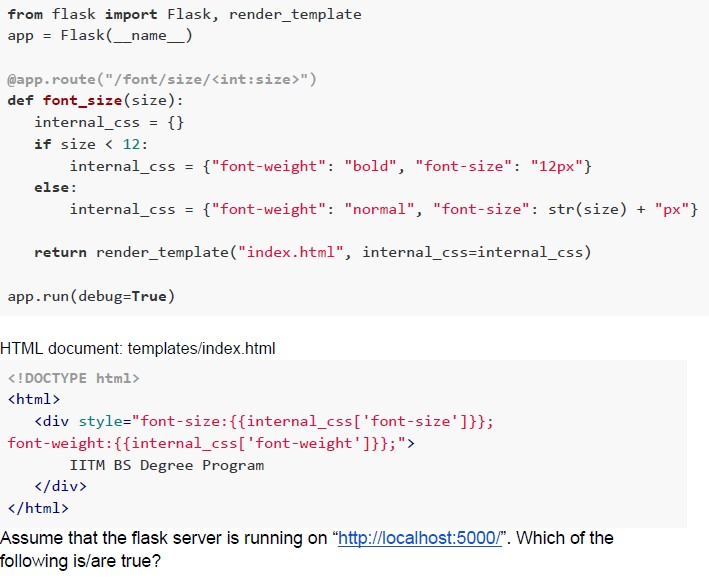 Consider the following Python code and HTML document.
Consider the following Python code and HTML document. Text of the picture (copyable)
```python
from flask import Flask, render_template
app = Flask(__name__)

@app.route("/font/size/<int:size>")
def font_size(size):
    internal_css = {}
    if size < 12:
        internal_css = {"font-weight": "bold", "font-size": "12px"}
    else:
        internal_css = {"font-weight": "normal", "font-size": str(size) + "px"}

    return render_template("index.html", internal_css=internal_css)

app.run(debug=True)
```

HTML document: templates/index.html
```html
<!DOCTYPE html>
<html>
    <div style="font-size:{{internal_css['font-size']}};
    font-weight:{{internal_css['font-weight']}};">
        IITM BS Degree Program
    </div>
</html>
```

Assume that the flask server is running on "http://localhost:5000/". Which of the following is/are true?
text
http://127.0.0.1:5000/font/size/20 will render "IITM BS Degree Program" with font-size=20 and font-weight=normal

text
http://127.0.0.1:5000/font/size/24 will render "IITM BS Degree Program" with
font-size=24 and font-weight=bold

text
http://127.0.0.1:5000/font/size/8 will render "IITM BS Degree Program" with font-size=12 and font-weight=bold

text
http://127.0.0.1:5000/font/size/16 will render "IITM BS Degree Program" with
font-size=16 and font-weight=normal
Which of the following is not a frontend framework?
- Vue JS
- React JS
- Node JS
- Angular JS
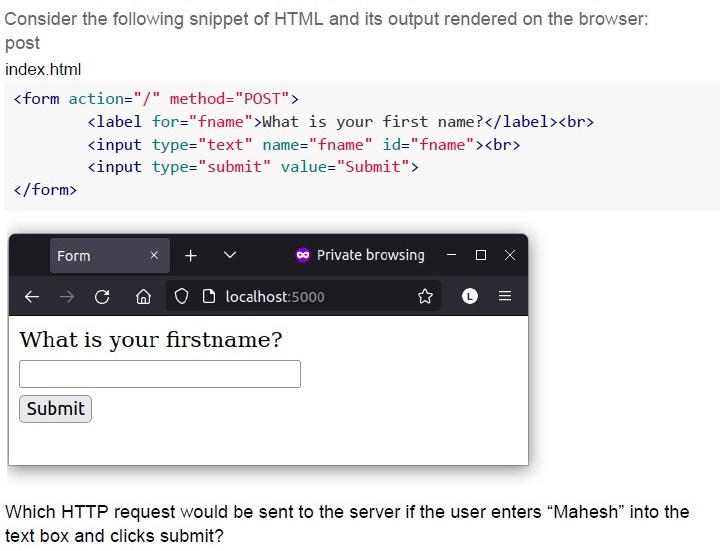
Text of the picture (copyable)
Consider the following snippet of HTML and its output rendered on the browser:
post
index.html

```html
<form action="/" method="POST">
    <label for="fname">What is your first name?</label><br>
    <input type="text" name="fname" id="fname"><br>
    <input type="submit" value="Submit">
</form>
```

Diagram: Browser window showing a web page.
The browser window has a dark grey title bar with "Form" as the tab title, a close button, a plus button, a dropdown arrow, a purple infinity symbol with "Private browsing", minimize, maximize, and close buttons.
Below the title bar is a navigation bar with back, forward, reload, home, shield, padlock, "localhost:5000", star, L, and menu icons.
The main content area of the browser window is white and displays:
"What is your firstname?"
Below this text is an empty rectangular input field.
Below the input field is a button labeled "Submit".

Which HTTP request would be sent to the server if the user enters "Mahesh" into the text box and clicks submit?- GET
- POST
- PUT
- DELETE
Which of the below JavaScript statement(s) are used to print information on the browser’s console?
- window.alert()
- console.log()
- document.write()
- None of these
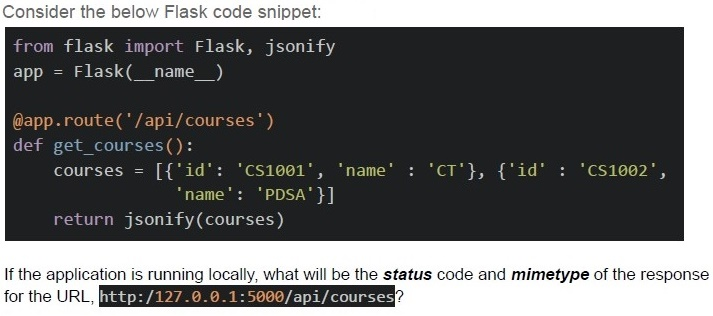
Text of the picture (copyable)
Consider the below Flask code snippet:

```python
from flask import Flask, jsonify

app = Flask(__name__)

@app.route('/api/courses')
def get_courses():
    courses = [{'id': 'CS1001', 'name': 'CT'}, {'id': 'CS1002',
               'name': 'PDSA'}]

    return jsonify(courses)
```

If the application is running locally, what will be the **status** code and **mimetype** of the response for the URL, `http://127.0.0.1:5000/api/courses`?
text
```
status=404 and mimetype='application/json'
```

text
```
status=200 and mimetype='application/json'
```

text
```
status=200 and mimetype='text/javascript'
```

text
```
status=404 and mimetype='text/javascript'
```
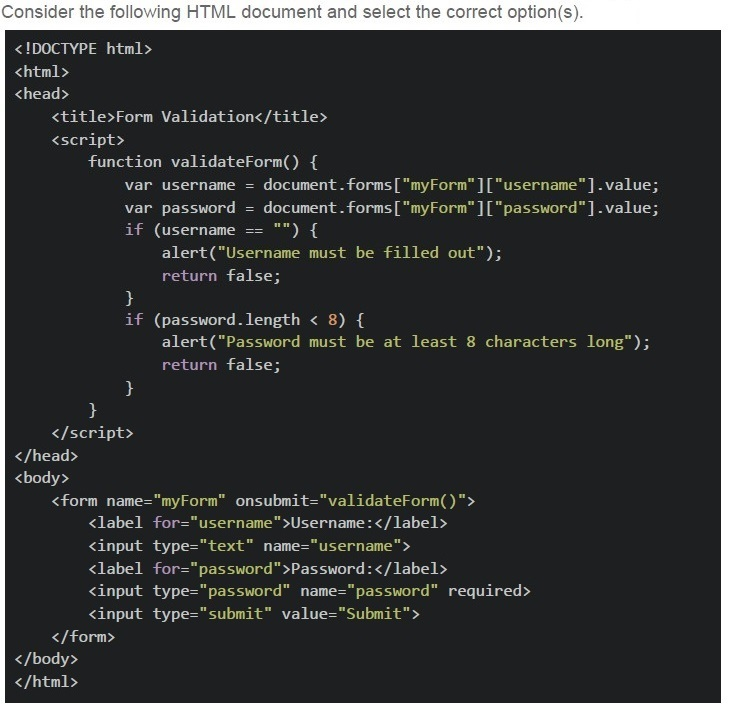
Text of the picture (copyable)
Consider the following HTML document and select the correct option(s).

```html
<!DOCTYPE html>
<html>
<head>
    <title>Form Validation</title>
    <script>
        function validateForm() {
            var username = document.forms["myForm"]["username"].value;
            var password = document.forms["myForm"]["password"].value;
            if (username == "") {
                alert("Username must be filled out");
                return false;
            }
            if (password.length < 8) {
                alert("Password must be at least 8 characters long");
                return false;
            }
        }
    </script>
</head>
<body>
    <form name="myForm" onsubmit="validateForm()">
        <label for="username">Username:</label>
        <input type="text" name="username">
        <label for="password">Password:</label>
        <input type="password" name="password" required>
        <input type="submit" value="Submit">
    </form>
</body>
</html>
```
text
The JavaScript function, `validateForm` performs the backend processing of form data.

text
The JavaScript function, `validateForm` carries out the client side validation of form data.

text
If the password field is left empty, on submission, the user will get a prompt
"Please fill out this field." near the password field.

text
If the password field is left empty, on submission, the user will get a prompt
"Password must be at least 8 characters long" from the browser.
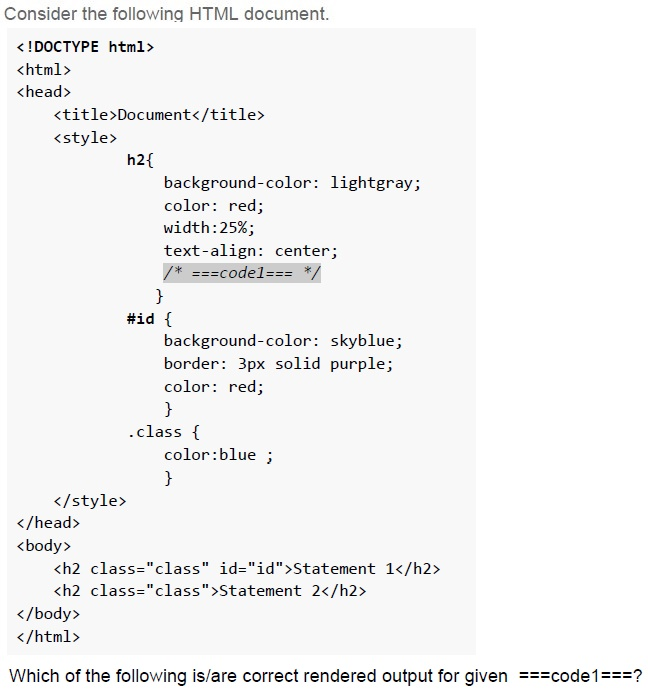
Text of the picture (copyable)
Consider the following HTML document.

```html
<!DOCTYPE html>
<html>
<head>
    <title>Document</title>
    <style>
        h2{
            background-color: lightgray;
            color: red;
            width:25%;
            text-align: center;
            /* ===code1=== */
        }
        #id {
            background-color: skyblue;
            border: 3px solid purple;
            color: red;
        }
        .class {
            color:blue ;
        }
    </style>
</head>
<body>
    <h2 class="class" id="id">Statement 1</h2>
    <h2 class="class">Statement 2</h2>
</body>
</html>
```

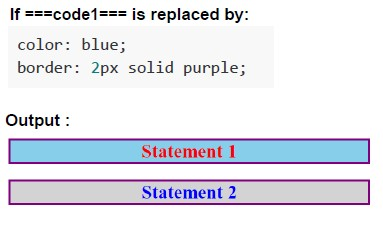
Which of the following is/are correct rendered output for given ===code1===?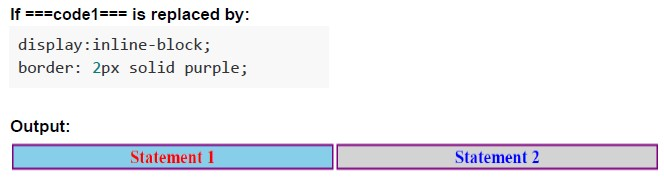
text
If ===code1=== is replaced by:

```css
display:inline-block;
border: 2px solid purple;
```

Output:

A diagram showing two rectangular boxes side-by-side.
The first box is light blue with a purple border and contains the text "Statement 1" in red.
The second box is light gray with a purple border and contains the text "Statement 2" in blue.
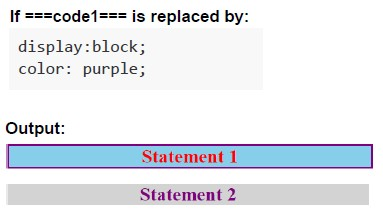
text
If ===code1=== is replaced by:

```
display:block;
color: purple;
```

Output:

A light blue rectangle with a purple border contains the text "Statement 1" in red.
Below it, a light gray rectangle contains the text "Statement 2" in purple.
text
If ===code1=== is replaced by:

```
color: blue;
border: 2px solid purple;
```

Output:

Statement 1
Statement 2
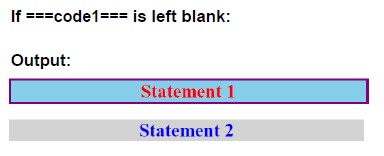
text
If ===code1=== is left blank:

Output:
Statement 1
Statement 2
How will the browser render the following HTML document?
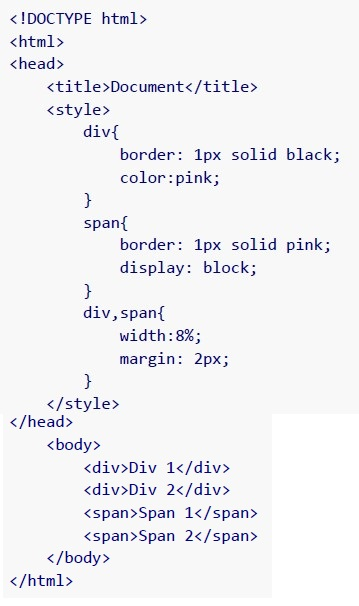 How will the browser render the following HTML document?
How will the browser render the following HTML document? Text of the picture (copyable)
```html
<!DOCTYPE html>
<html>
<head>
    <title>Document</title>
    <style>
        div{
            border: 1px solid black;
            color:pink;
        }
        span{
            border: 1px solid pink;
            display: block;
        }
        div,span{
            width:8%;
            margin: 2px;
        }
    </style>
</head>
<body>
    <div>Div 1</div>
    <div>Div 2</div>
    <span>Span 1</span>
    <span>Span 2</span>
</body>
</html>
```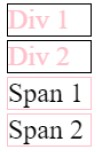
text
Div 1
Div 2
Span 1
Span 2
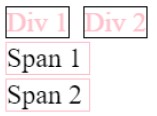
text
This is a UI screenshot showing four text elements, each enclosed in a rectangular border.
The top row has two elements:
- "Div 1" (text in light red, black border)
- "Div 2" (text in light red, black border)
The second row has one element:
- "Span 1" (text in black, black border)
The third row has one element:
- "Span 2" (text in black, light red border)

text
Div 1
Div 2
Span 1
Span 2
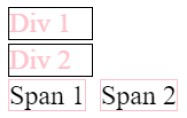
text
Div 1 Div 2 Span 1 Span 2
Which of the following is not a web component?
- Custom Elements
- Shadow DOM
- HTML Templates
- Web Assembly
What is Emscripten in the context of WebAssembly?
- A WebAssembly specification
- A JavaScript framework
- A toolchain for compiling C/C++ code to WebAssembly
- An HTML and CSS editor
Given a Python code snippet, code.py is run on the terminal with an appropriate temp.html document.
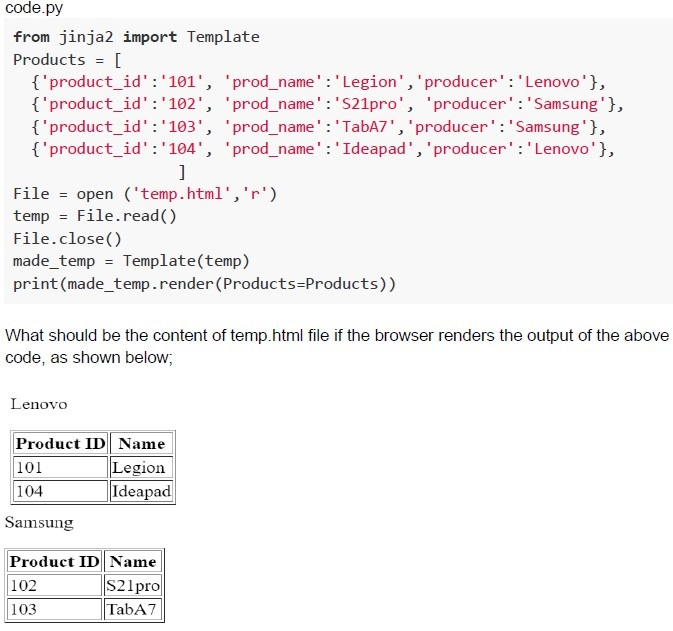 Given a Python code snippet, code.py is run on the terminal with an appropriate temp.html document.
Given a Python code snippet, code.py is run on the terminal with an appropriate temp.html document. Text of the picture (copyable)
code.py
```python
from jinja2 import Template

Products = [
    {'product_id':'101', 'prod_name':'Legion', 'producer':'Lenovo'},
    {'product_id':'102', 'prod_name':'S21pro', 'producer':'Samsung'},
    {'product_id':'103', 'prod_name':'TabA7', 'producer':'Samsung'},
    {'product_id':'104', 'prod_name':'Ideapad', 'producer':'Lenovo'},
]

File = open ('temp.html','r')
temp = File.read()
File.close()
made_temp = Template(temp)
print(made_temp.render(Products=Products))
```

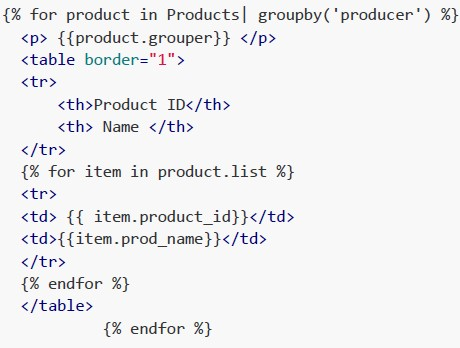
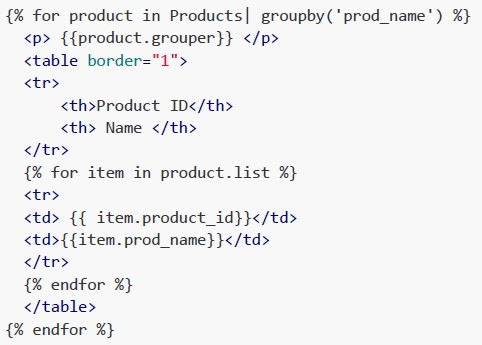
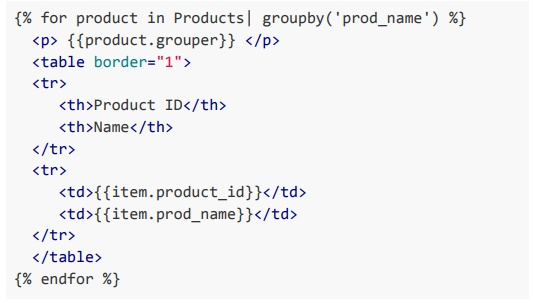
What should be the content of temp.html file if the browser renders the output of the above code, as shown below;

Lenovo

| Product ID | Name    |
|:-----------|:--------|
| 101        | Legion  |
| 104        | Ideapad |

Samsung

| Product ID | Name   |
|:-----------|:-------|
| 102        | S21pro |
| 103        | TabA7  |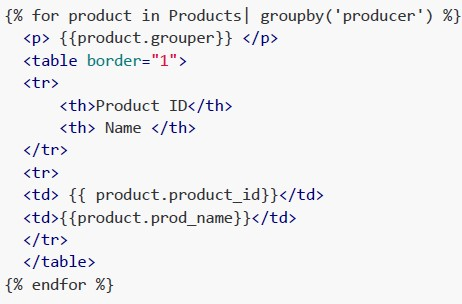
text
```html
{% for product in Products| groupby('producer') %}
<p> {{product.grouper}} </p>
<table border="1">
<tr>
<th>Product ID</th>
<th> Name </th>
</tr>
<tr>
<td> {{ product.product_id}}</td>
<td>{{product.prod_name}}</td>
</tr>
</table>
{% endfor %}
```
text
```html
{% for product in Products| groupby('producer') %}
<p> {{product.grouper}} </p>
<table border="1">
<tr>
<th>Product ID</th>
<th> Name </th>
</tr>
{% for item in product.list %}
<tr>
<td> {{ item.product_id}}</td>
<td>{{item.prod_name}}</td>
</tr>
{% endfor %}
</table>
{% endfor %}
```
text
```html
{% for product in Products| groupby('prod_name') %}
<p> {{product.grouper}} </p>
<table border="1">
<tr>
<th>Product ID</th>
<th> Name </th>
</tr>
{% for item in product.list %}
<tr>
<td> {{ item.product_id}}</td>
<td>{{item.prod_name}}</td>
</tr>
{% endfor %}
</table>
{% endfor %}
```
text
```html
{% for product in Products| groupby('prod_name') %}
    <p>{{product.grouper}}</p>
    <table border="1">
        <tr>
            <th>Product ID</th>
            <th>Name</th>
        </tr>
        <tr>
            <td>{{item.product_id}}</td>
            <td>{{item.prod_name}}</td>
        </tr>
    </table>
{% endfor %}
```
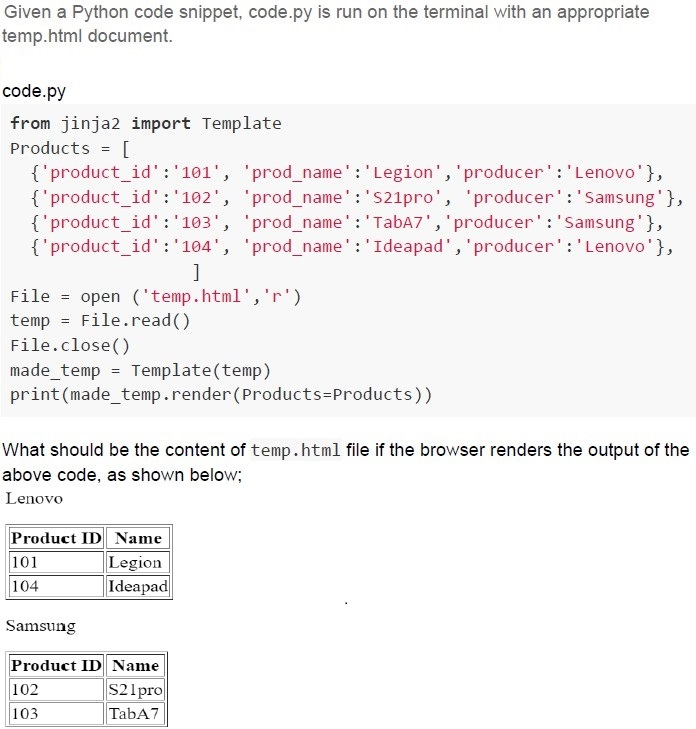
Text of the picture (copyable)
Given a Python code snippet, code.py is run on the terminal with an appropriate temp.html document.

code.py
```python
from jinja2 import Template
Products = [
    {'product_id':'101', 'prod_name':'Legion', 'producer':'Lenovo'},
    {'product_id':'102', 'prod_name':'S21pro', 'producer':'Samsung'},
    {'product_id':'103', 'prod_name':'TabA7', 'producer':'Samsung'},
    {'product_id':'104', 'prod_name':'Ideapad', 'producer':'Lenovo'},
]

file = open ('temp.html','r')
temp = file.read()
file.close()
made_temp = Template(temp)
print(made_temp.render(Products=Products))
```

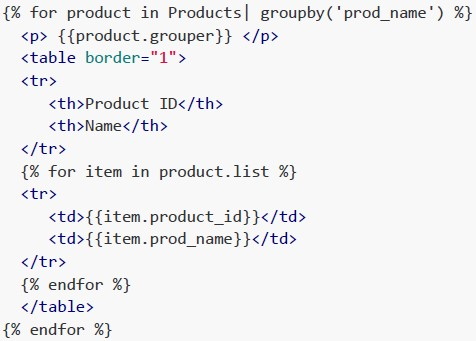
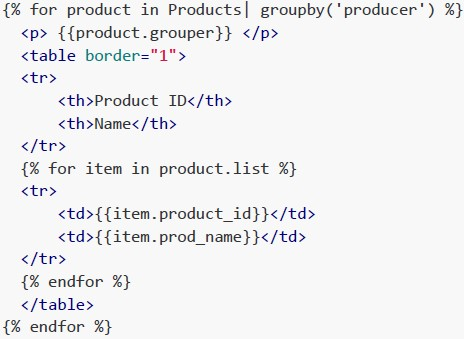
What should be the content of temp.html file if the browser renders the output of the above code, as shown below;
Lenovo

| Product ID | Name    |
|:-----------|:--------|
| 101        | Legion  |
| 104        | Ideapad |

Samsung

| Product ID | Name   |
|:-----------|:-------|
| 102        | S21pro |
| 103        | TabA7  |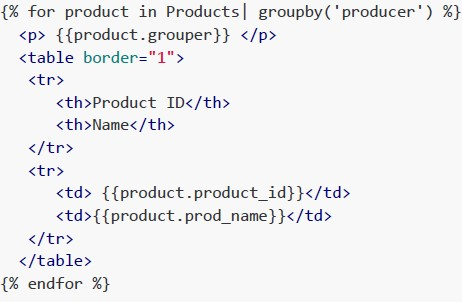
text
```html
{% for product in Products| groupby('producer') %}
<p> {{product.grouper}} </p>
<table border="1">
    <tr>
        <th>Product ID</th>
        <th>Name</th>
    </tr>
    <tr>
        <td>{{product.product_id}}</td>
        <td>{{product.prod_name}}</td>
    </tr>
</table>
{% endfor %}
```
text
```html
{% for product in Products| groupby('prod_name') %}
<p>{{product.grouper}} </p>
<table border="1">
<tr>
<th>Product ID</th>
<th>Name</th>
</tr>
{% for item in product.list %}
<tr>
<td>{{item.product_id}}</td>
<td>{{item.prod_name}}</td>
</tr>
{% endfor %}
</table>
{% endfor %}
```
text
```html
{% for product in Products| groupby('producer') %}
<p> {{product.grouper}} </p>
<table border="1">
<tr>
<th>Product ID</th>
<th>Name</th>
</tr>
{% for item in product.list %}
<tr>
<td>{{item.product_id}}</td>
<td>{{item.prod_name}}</td>
</tr>
{% endfor %}
</table>
{% endfor %}
```
text
```html
{% for product in Products| groupby('prod_name') %}
    <p>{{product.grouper}}</p>
    <table border="1">
        <tr>
            <th>Product ID</th>
            <th>Name</th>
        </tr>
        <tr>
            <td>{{item.product_id}}</td>
            <td>{{item.prod_name}}</td>
        </tr>
    </table>
{% endfor %}
```
Text of the picture (copyable)
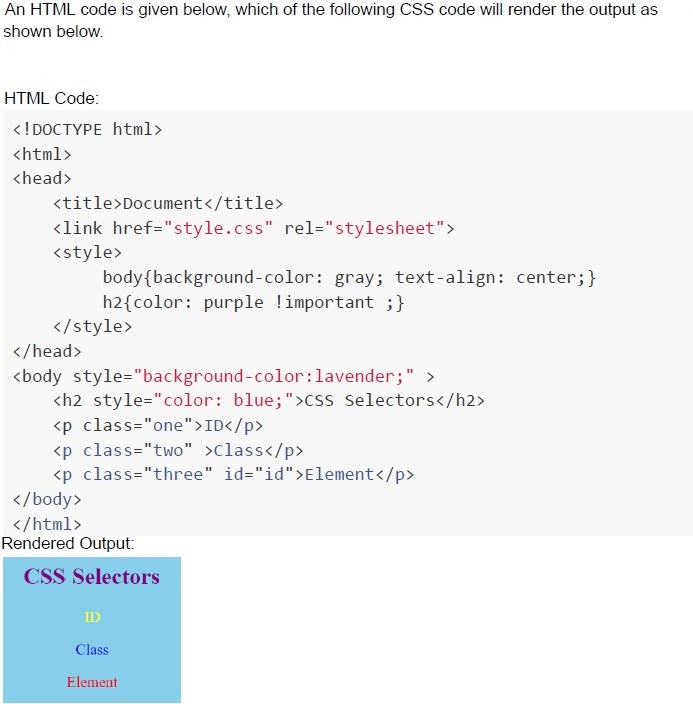
An HTML code is given below, which of the following CSS code will render the output as shown below.

HTML Code:

```html
<!DOCTYPE html>
<html>
<head>
    <title>Document</title>
    <link href="style.css" rel="stylesheet">
    <style>
        body{background-color: gray; text-align: center;}
        h2{color: purple !important ;}
    </style>
</head>
<body style="background-color:lavender;" >
    <h2 style="color: blue;">CSS Selectors</h2>
    <p class="one">ID</p>
    <p class="two">Class</p>
    <p class="three" id="id">Element</p>
</body>
</html>
```

Rendered Output:

UI screenshot: A light blue rectangular box with rounded corners.
Inside the box, the text "CSS Selectors" is displayed in purple, centered.
Below it, the text "ID" is displayed in blue, centered.
Below it, the text "Class" is displayed in blue, centered.
Below it, the text "Element" is displayed in red, centered.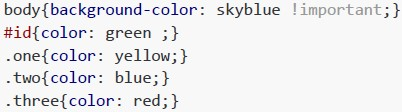
text
```css
body{background-color: skyblue !important;}
#id{color: green ;}
.one{color: yellow;}
.two{color: blue;}
.three{color: red;}
```
text
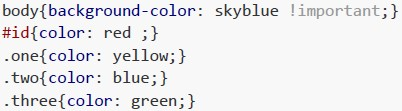
```css
body{background-color: skyblue !important;}
#id{color: red ;}
.one{color: yellow;}
.two{color: blue;}
.three{color: green;}
```
text
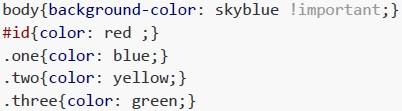
```css
body{background-color: skyblue !important;}
#id{color: red ;}
.one{color: blue;}
.two{color: yellow;}
.three{color: green;}
```
text
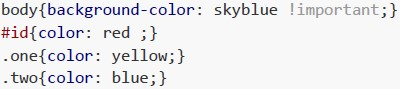
```css
body{background-color: skyblue !important;}
#id{color: red ;}
.one{color: yellow;}
.two{color: blue;}
```
Consider the following flask view function defined to add a product and select correct statement(s).
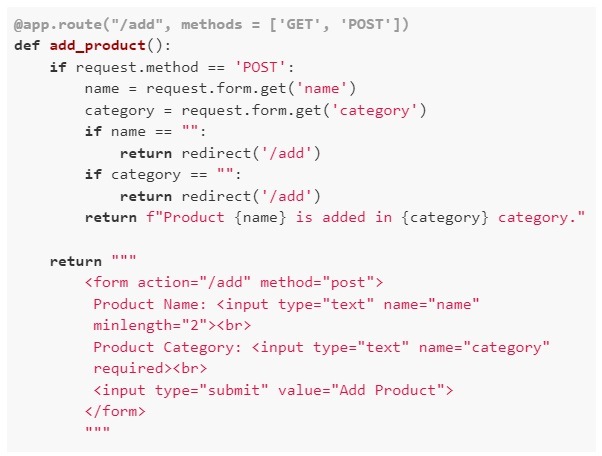 Consider the following flask view function defined to add a product and select correct statement(s).
Consider the following flask view function defined to add a product and select correct statement(s). Text of the picture (copyable)
```python
@app.route("/add", methods = ['GET', 'POST'])
def add_product():
    if request.method == 'POST':
        name = request.form.get('name')
        category = request.form.get('category')
        if name == "":
            return redirect('/add')
        if category == "":
            return redirect('/add')
        return f"Product {name} is added in {category} category."

    return """
    <form action="/add" method="post">
        Product Name: <input type="text" name="name"
        minlength="2"><br>
        Product Category: <input type="text" name="category"
        required><br>
        <input type="submit" value="Add Product">
    </form>
    """
```
text
The form to add the product is statically generated.

text
The form to add the product is dynamically generated.

text
The form rendered for `/add` endpoint has frontend validation.

text
The form rendered for `/add` endpoint has backend validation.
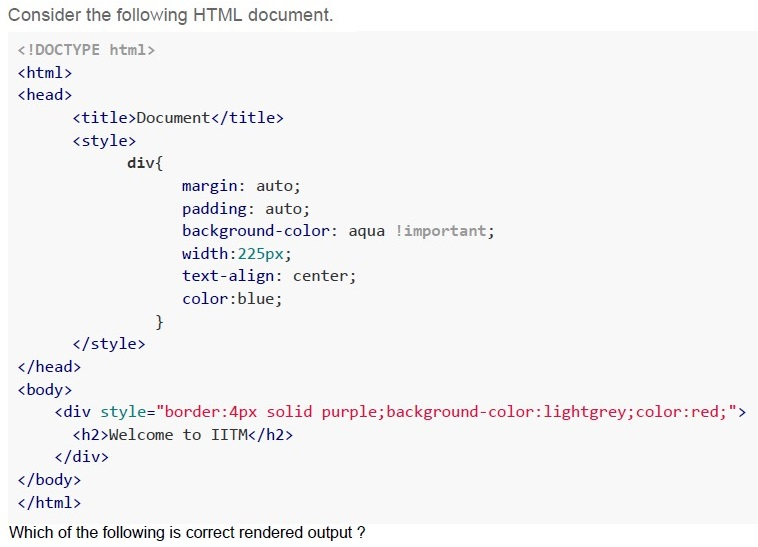
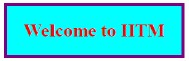
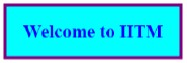
Text of the picture (copyable)
Consider the following HTML document.

```html
<!DOCTYPE html>
<html>
<head>
    <title>Document</title>
    <style>
        div{
            margin: auto;
            padding: auto;
            background-color: aqua !important;
            width:225px;
            text-align: center;
            color:blue;
        }
    </style>
</head>
<body>
    <div style="border:4px solid purple;background-color:lightgrey;color:red;">
        <h2>Welcome to IITM</h2>
    </div>
</body>
</html>
```
Which of the following is correct rendered output ?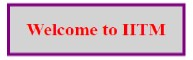
text
Welcome to IITM
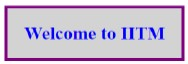
text
Welcome to IITM
text
Welcome to IITM
text
Welcome to IITM